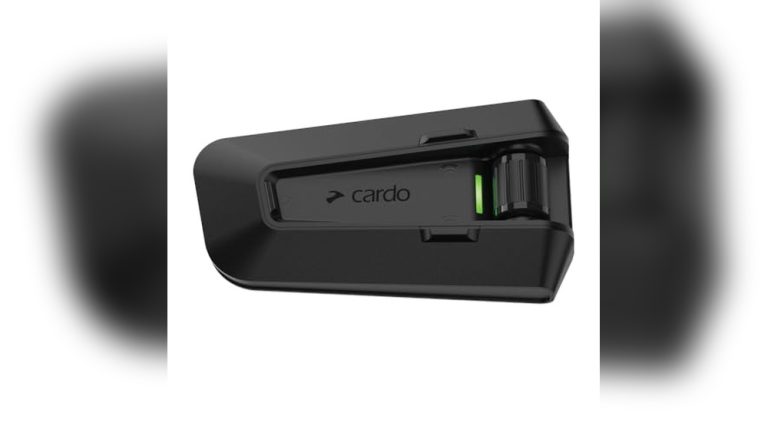
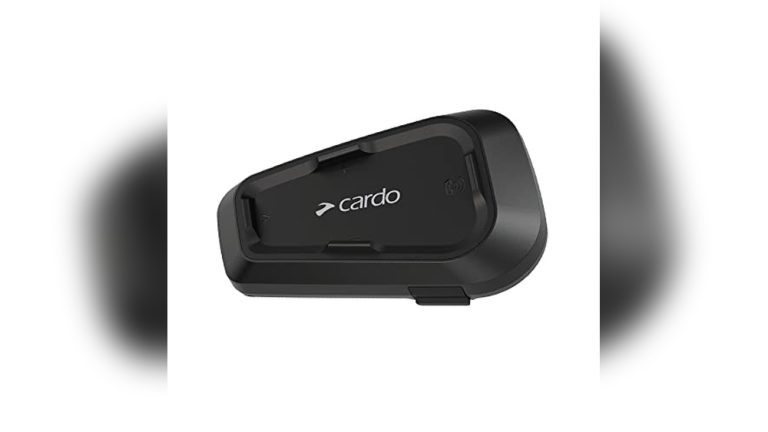
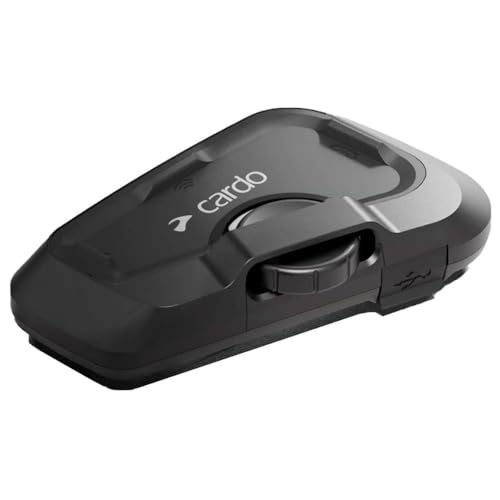
Cardo Freecom 4X Manual: Setup, Pairing & Tips 2026

The Cardo Freecom 4X manual shows you how to install, pair, and master every feature.
If you want a clear, rider-tested breakdown of the Cardo Freecom 4X manual, you are in the right place. I have installed, configured, and used this unit in all weather. This guide turns the Cardo Freecom 4X manual into plain steps, clear tables-in-words, and smart tips that save time and stress on the road. Read on to set it up right the first time and ride with confidence.

What this guide covers
This article turns the Cardo Freecom 4X manual into a simple, step-by-step roadmap. You will learn how to mount the unit, pair phones and intercoms, fine-tune audio, and use voice control. You will also get real-world tips, fixes, and safety notes.
Key goals in this Cardo Freecom 4X manual guide:
- Install the unit fast and clean
- Pair your phone, GPS, and up to 3 other riders
- Use the Cardo Connect app and update firmware
- Solve common issues on the spot
- Protect your hearing and battery health
Real-world note: I tested the Freecom 4X with two phones, a GPS, and mixed-brand intercoms. The steps below reflect that hands-on use, not just theory.

Quick specs and standout features
Here are the highlights most riders ask about before or during setup. These mirror what the Cardo Freecom 4X manual covers, with plain language advice based on road use.
- Intercom for up to 4 riders with live reconnect
- Bluetooth 5.x for better stability
- JBL 40 mm speakers with sound profiles
- Natural Voice: say “Hey Cardo” to control hands-free
- Waterproof and dustproof design for all seasons
- FM radio with RDS and presets
- Fast charging through USB-C
- Over-the-air updates via Cardo Connect app
From my rides, voice control and OTA updates are the real wins. Fewer button presses, and no cables for updates.

Unboxing and what’s in the kit
Open the box and lay out all parts. This makes install easy and avoids missed pieces.
You should have:
- Freecom 4X main unit
- Helmet cradle with clamp and adhesive mount
- JBL 40 mm speakers
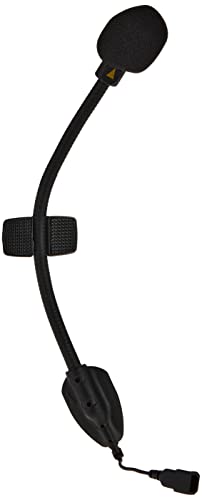
- Boom mic for open-face and modular helmets
- Wired mic for full-face helmets
- Velcro pads and alcohol wipes
- USB-C charging cable
- Quick start card
Tip from the road: Keep the alcohol wipes for last. Clean surfaces just before you stick pads or mounts so they hold tight.
Helmet installation and speaker placement
A clean install improves comfort and audio. Take your time. A few extra minutes here pay off on every ride.
Steps to mount the unit:
- Choose clamp or adhesive for the cradle. Clamp gives more security if your helmet shell allows it.
- Slide or stick the cradle on the left side. Most riders use the left to free the right hand for throttle.
- Place the speakers over the ear pockets. Use the foam spacers to bring them closer if needed.
- Route cables along the liner. Tuck behind pads to avoid pressure points.
- Select the right mic. Use the boom mic for open or modular helmets. Use the wired mic for full-face shells.
- Snap the unit onto the cradle. Check that the wheel and buttons turn and click with gloves on.
Fit check:
- Put on the helmet and play music at low volume.
- Move speakers a few millimeters at a time until vocals sound clear and centered.
- If bass is weak, bring speakers closer to your ears or add the foam spacers.
Buttons, wheel, and LED basics
The Cardo Freecom 4X manual maps each control. Learn these motions now so you can keep eyes on the road.
Main controls:
- Control wheel: volume up or down, press to confirm in some modes
- Front button: intercom and call functions
- Rear button: media and radio functions
- Unit power: press and hold per on-screen prompt in the app or quick guide
LED behavior at a glance:
- Solid light during charging, then different solid color when full
- Slow flash when powered on and idle
- Rapid alternating flashes when in pairing mode
Note: LED patterns can change with firmware updates. If in doubt, open Cardo Connect and check device status there.
First-time setup checklist
Do these steps in order. It mirrors the Cardo Freecom 4X manual, but in a fast flow.
- Charge the unit to full with the USB-C cable
- Install the Cardo Connect app on iOS or Android
- Power on the device and grant app permissions
- Update firmware over the air when prompted
- Set your language and default voice control
- Pair your phone as Phone 1 through the app or hardware buttons
- If you use a GPS or second phone, pair it as Phone 2 or GPS
Battery note: Fast charge for about 20 minutes gives enough power for a short commute. For long rides, charge to full.
Pairing the intercom and building a group
The Cardo Freecom 4X manual supports up to 4 riders in one group. Stable links need clean pairing steps and a quick test before you roll.
Pair two Freecom 4X units:
- Put both units in intercom pairing mode
- Confirm the chime or LED change on both units
- Say “Hello” to test audio both ways
Add more riders:
- Pair one by one with the lead unit
- Keep all helmets within a few feet during pairing
- Name riders in the app so you know who is who
Universal pairing with other brands:
- Put the other brand in phone pairing mode
- Put your Freecom 4X in universal pairing
- Confirm with a call or chat test
Range and clarity tips:
- Expect best range in open areas
- Trucks, buildings, and hills will cut distance
- Keep units on the left side for lane-to-lane line of sight in right-hand traffic
Audio tuning, voice control, and media
Good audio starts with speaker placement. Then refine with profiles and voice.
Audio setup:
- In Cardo Connect, try the JBL profiles
- Start with standard profile for spoken audio
- Switch to bass boost only after fit is dialed
Voice commands with “Hey Cardo” work well with a clear mic:
- “Hey Cardo, volume up”
- “Hey Cardo, music on”
- “Hey Cardo, next track”
- “Hey Cardo, battery status”
- “Hey Cardo, radio on”
- “Hey Cardo, speed dial”
Media and calls:
- Use the wheel for quick volume tweaks
- Music sharing pairs you with a passenger for the same track
- Auto volume can raise or lower levels by speed and wind
Road note: At highway speed, I rely on voice and the wheel. Taps can misfire with thick gloves.
Using the Cardo Connect app and updating firmware
The app is your control hub. It mirrors the Cardo Freecom 4X manual and adds live control.
What to set in the app:
- Device settings and button shortcuts
- JBL sound profiles and auto volume
- Intercom group names and priority
- Voice control language
- FM presets and radio region
Firmware updates:
- Keep your phone charged and close to the unit
- Start the update with the helmet powered and still
- Do not quit the app until it confirms complete
Tip: Check for updates before a big trip. New releases often fix bugs and improve voice and battery use.
Everyday use and rider-tested best practices
These habits come from long rides and mixed weather days. They make the Cardo Freecom 4X manual come alive.
- Do a quick mic check before you roll out
- Save your most-used actions to the wheel and front button
- Use voice for calls, media, and radio while moving
- Fast charge at fuel stops if the day runs long
- Keep a short USB-C cable in your tank bag for nav and charge
Glove test:
- Practice button presses with your gloves at home
- Count clicks and feel the wheel detents with eyes closed
- Muscle memory keeps you safe on the road
Troubleshooting and quick resets
Most issues come down to pairing, mic placement, or battery. Use this flow before deep dives in the Cardo Freecom 4X manual.
If the intercom will not pair:
- Delete old pairings on all devices
- Reboot each unit and your phone
- Pair again with units close together
If you hear no music or nav:
- Check app permissions for Bluetooth and media
- Confirm the right audio profile and source
- Raise volume on the phone and unit
If the mic is noisy or quiet:
- Move the mic close to the lips, slightly off-center
- Use the foam wind sock and check for rubbing on the liner
- Lower the intercom gain in loud helmets
If all else fails:
- Back up settings in the app
- Perform a factory reset in Cardo Connect
- Re-add devices and profiles from scratch
Care, maintenance, and safety
Treat it well and it will last. The Cardo Freecom 4X manual recommends simple steps that work in real life.
- Clean pads and speakers with a dry cloth
- Do not soak the unit even if it is waterproof
- Keep vents free of dust and grit
- Charge at room temperature when you can
- Store half-charged if not used for weeks
Hearing and legal notes:
- Keep volume at safe levels to protect hearing
- Know local rules for headphone use while riding
- Use voice and minimal button presses to stay focused
Compatibility, limits, and what to expect
The Cardo Freecom 4X manual helps set clear expectations. This avoids surprises on group rides.
What it does well:
- Clean Bluetooth intercom for up to 4 riders
- Strong voice control and audio clarity
- Stable phone, GPS, and music links
Limits to note:
- It is not a mesh unit like Packtalk models
- Range depends on terrain and line of sight
- Mixed-brand groups may take extra steps to connect
When to upgrade:
- If you ride in big groups often, mesh intercom can help
- If you need longer range, consider mesh or a relay rider
Quick answers
How long is the battery life?
- Up to a full riding day for most riders, around 13 hours. Fast charge helps on long tours.
Does it work in heavy rain?
- Yes, it is built to handle rain and dust. Dry the contacts before charging.
Can I pair with a passenger and two more riders?
- Yes, up to four total in one group. Test the group at low speed before the main ride.
Frequently Asked Questions of Cardo Freecom 4X manual
How do I pair a second phone or GPS?
Use the app or hardware steps to add a second device as Phone 2 or GPS. Keep the first phone as Phone 1 for calls and media priority.
What is the best mic for my helmet type?
Use the boom mic for open-face and modular helmets. Use the wired mic for full-face shells to reduce wind noise.
How do I update the firmware?
Open Cardo Connect, connect your unit, and follow the update prompt. Keep the phone and unit still and charged until complete.
Why is music volume low at speed?
Check speaker placement and try the JBL profile that boosts mids. Turn on auto volume so it adapts to wind and speed.
Can I share music with a passenger?
Yes, enable music sharing in the app or with the right button combo. Both riders will hear the same track in sync.
How do I fix echo in intercom chats?
Move mics slightly off-center and reduce intercom gain. Make sure the speakers are not too close to the mic.
Will my older Cardo unit connect?
Yes, use standard or universal pairing as noted in the Cardo Freecom 4X manual. Some features may not carry over across generations.
Conclusion
You now have a clear, road-ready take on the Cardo Freecom 4X manual. Install it clean, pair it right, and lean on voice control and the app for a smooth ride. Set your profiles today, test your intercom group in a parking lot, and enjoy crisp audio on your next trip.
Want more like this? Subscribe for fresh guides, leave a question in the comments, or share your own pro tip for the Cardo Freecom 4X manual.