How To Connect Cardo Freecom 4x: Step-By-Step Guide 2026

Connect your Cardo Freecom 4x via Bluetooth, then use the Cardo Connect app to finalize.
If you want a smooth ride, you need smooth setup. I’ve paired dozens of Cardo units for myself and for group rides. This guide shows how to connect Cardo Freecom 4x to phones, GPS, TFT dashes, and other brands. You will get clear steps, real examples, and pro tips that work on the road.
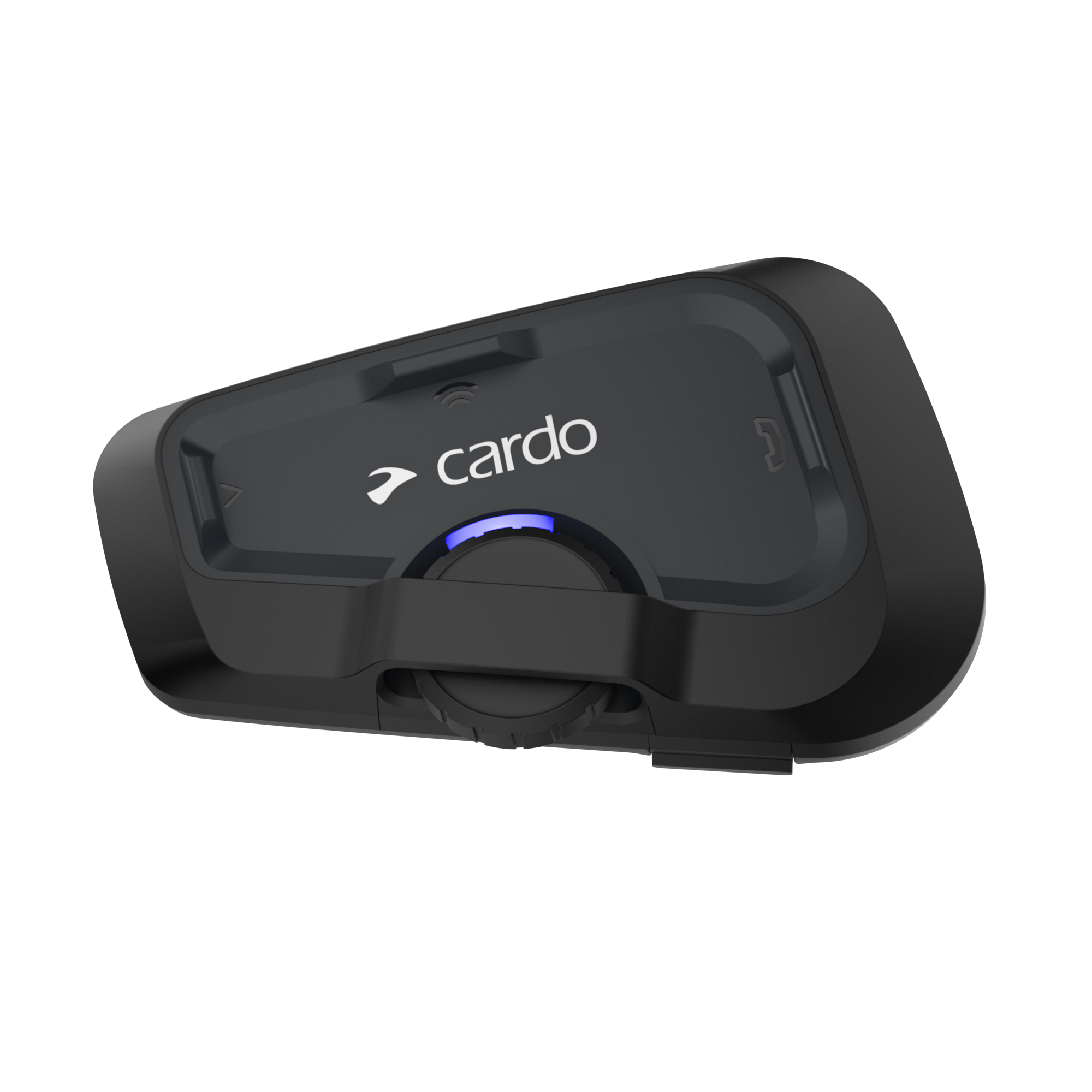
What you need before you start
Before we dive into how to connect Cardo Freecom 4x, get these basics ready.
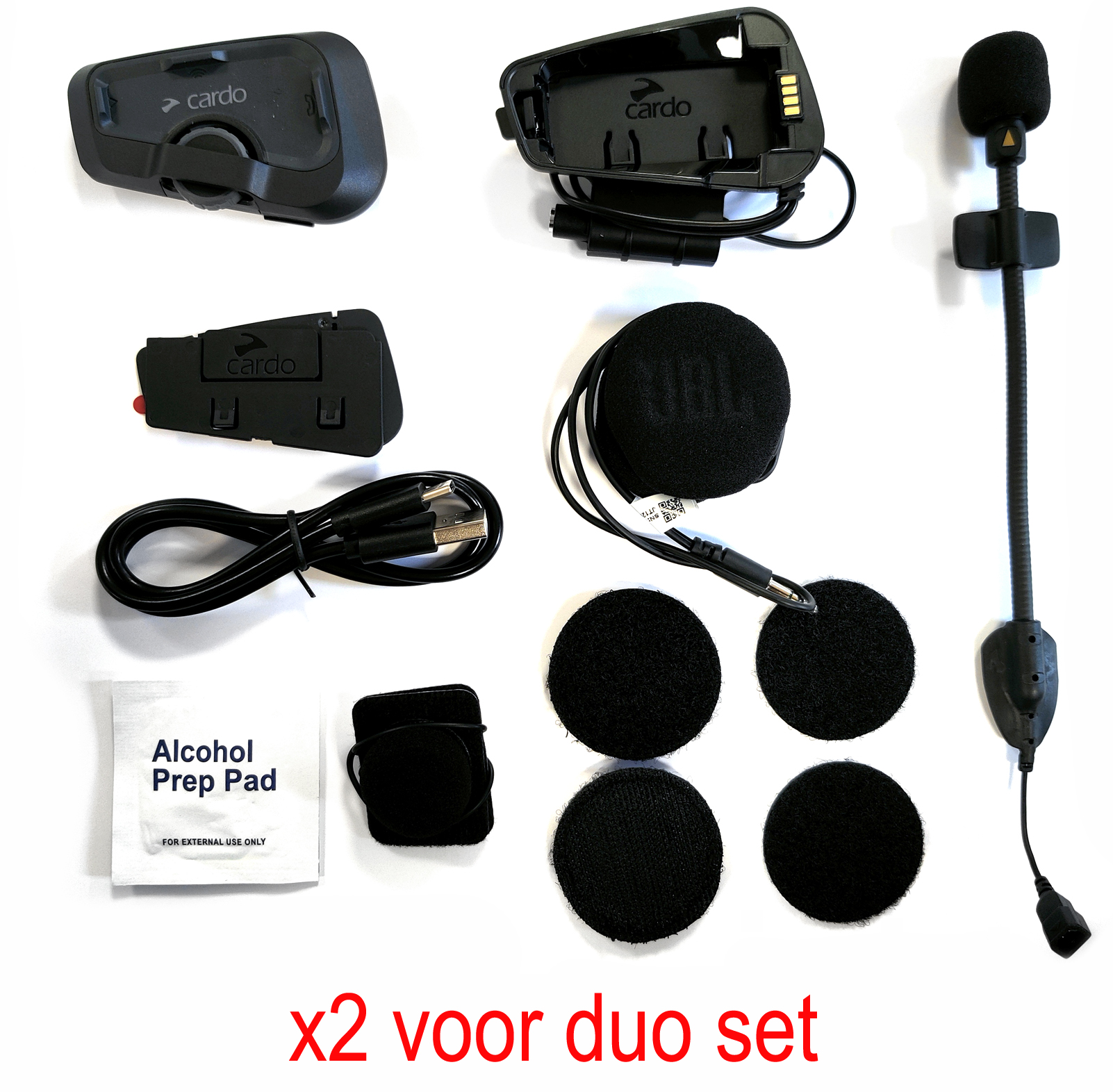
- A fully charged Cardo Freecom 4x Install it on your helmet and confirm the mic and speakers are seated well.
- Your smartphone with Bluetooth on Keep it close to the unit.
- Cardo Connect app Install it from the App Store or Google Play.
- Latest firmware Update using Cardo Connect when prompted.
- A quiet place to pair Turn off your bike’s engine or move away from heavy noise.
Pro tip from the road: update firmware first. It fixes weird bugs and saves time. I always do this before a big trip.

Source: youtube.com
Understand connection types on Freecom 4x
Knowing the types of links helps you decide how to connect Cardo Freecom 4x the right way.
- Phone pairing Your phone connects for calls, music, and voice assistants.
- Intercom pairing Your unit connects to other riders for chat.
- GPS or TFT pairing Your headset links to a sat-nav or bike dash for directions and calls.
- Universal pairing Your Cardo links to other brands, like Sena, through a special mode.
Freecom 4x can hold more than one pairing. It can keep a phone and a GPS at the same time. It can also talk to up to four riders in Bluetooth intercom.
Can I connect to two devices at once?
Yes. You can pair a primary phone and a GPS or a second phone. Music and calls come from the primary phone.
Do I need the Cardo Connect app?
It is not required, but it helps a lot. The app runs updates, tweaks audio, and has pairing wizards.
Will it work with a BMW or KTM TFT?
Yes, but the order you pair matters. Follow the TFT steps below to avoid drops.

Source: youtube.com
Step-by-step: Pair Cardo Freecom 4x to your smartphone
This is the most common task when you learn how to connect Cardo Freecom 4x.
App method (easiest)
- Turn on your Freecom 4x.
- Open Cardo Connect and tap Pairing or Device.
- Follow the on-screen steps until your phone shows Cardo Freecom 4x. Tap to pair.
- Allow contacts, calls, and media. This makes buttons and voice work.
Manual button method
- Turn on your Freecom 4x.
- Put it in phone pairing. Press and hold the Phone button for about five seconds until you hear pairing or see red/blue flashes.
- On your phone, go to Bluetooth. Tap Cardo Freecom 4x. Confirm the code if asked.
- Allow contacts and media.
Test your setup
- Play a song. Use the Media button to pause.
- Make a call. Check mic placement if the other person hears wind.
Mistakes to avoid
- Do not pair the same phone twice. If you did, forget the device on your phone, then pair again once.
- Keep other headsets off while pairing to avoid cross-pairing.

Source: cardosystems.com
Step-by-step: Connect to a passenger or another rider
Here is how to connect Cardo Freecom 4x to a friend for rider-to-rider chat.
- Put both units near each other. Turn them on.
- On both units, press and hold the Intercom button for about five seconds until they announce pairing.
- Wait for the confirmation. You should hear that the intercom is connected.
- Start talking. Use the Intercom button to open or close the channel as needed.
Tips from group rides
- Name your profiles in the app. It helps you see who is who.
- Keep line of sight when you can. Trees, trucks, and hills cut range.
- Freecom 4x can link up to four riders. Pair riders one by one. Stay patient and confirm each link before adding the next.
Music sharing
- You can share music with your passenger. Start music, then enable music sharing in the app.

Source: youtube.com
Step-by-step: Connect to a GPS, TFT dash, or motorcycle multimedia
Want turn-by-turn and easy calls from your dash? This is how to connect Cardo Freecom 4x the right way.
Direct GPS pairing
- Put the Freecom 4x in GPS pairing mode. In many cases, you start with phone pairing, then select GPS in the app’s wizard. If you prefer buttons, enter phone pairing, then follow the voice prompt to pair a GPS if offered.
- On the GPS, open Bluetooth. Choose Headset or Helmet. Select Cardo Freecom 4x.
- Accept any prompts for calls and navigation.
Two proven TFT setups
Setup A (most stable for many bikes)
- Pair your phone to the Cardo Freecom 4x first using the app.
- Pair your Cardo Freecom 4x to the bike’s TFT as a headset or helmet.
- Do not pair your phone to the TFT. All audio and calls go direct to Cardo. Controls on the handlebar may be limited.
Setup B (if you want full TFT media control)
- Pair your phone to the bike’s TFT.
- Pair your Cardo Freecom 4x to the TFT as a headset or helmet.
- Open Cardo Connect. If the app cannot see the unit through the TFT bridge, you may need to also pair the phone direct to Cardo when parked, make changes, then remove the extra link. Behavior varies by brand.
Notes
- Some TFTs do not pass app data well. If Cardo Connect cannot reach the unit, connect the phone direct to Cardo to update or change settings.
- If audio cuts, clear all pairings on the TFT, phone, and Cardo, then repeat the chosen setup.

Source: youtube.com
Step-by-step: Connect Cardo Freecom 4x to Sena or other brands
Here is how to connect Cardo Freecom 4x to a Sena, UClear, or other brands using Universal Intercom.
Using the app (best choice)
- Open Cardo Connect. Go to Intercom or Universal pairing wizard.
- Select Universal pairing. Follow the prompts.
- Put the other brand in Phone pairing or Universal mode. Wait for the units to confirm.
Manual method (if you prefer buttons)
- Put the other brand headset into Phone pairing.
- Put your Cardo into second mobile or universal pairing. You can enter phone pairing and, if offered by the voice menu, choose second phone or universal.
- Wait for the connection to confirm.
What to expect
- Voice quality is good, but features may be limited.
- Range can drop a bit. Reconnects may take longer than Cardo-to-Cardo.
Source: rad.eu
Use the Cardo Connect app to manage connections and updates
The app makes it easy to master how to connect Cardo Freecom 4x and keep it fresh.
What you can do
- Update firmware Over-the-air updates take a few minutes and fix bugs.
- Run pairing wizards Pick phone, GPS, TFT, or universal intercom. The app guides you.
- Set audio profiles Tune bass and treble for the JBL speakers.
- Toggle features Adjust auto volume, mic sensitivity, and speed dial.
- Check battery See your charge before a long ride.
Real-world tip
- I save two presets. One for solo rides with more music bass. One for group rides with voice priority.
Troubleshooting: When it won’t connect
Even pros hit snags. Here is how to connect Cardo Freecom 4x again when things go wrong.
Quick fixes
- Toggle Bluetooth Off and on for both devices.
- Forget and re-pair On your phone, remove Cardo Freecom 4x from Bluetooth devices. Re-pair using the app.
- Reboot the Cardo Turn it off, wait 10 seconds, turn it on.
- Reset connections In Cardo Connect, use Reset or Clear pairings, then pair fresh.
- Move away from Wi‑Fi routers and other headsets Interference can block pairing.
If audio is low or crackly
- Reseat the speakers. Make sure the pads sit right over your ears.
- Check mic foam. Replace if wet or torn.
- Turn off audio effects on the phone that may compress sound.
Factory reset
- Use the app to restore defaults if needed. Then re-pair step by step.
- If the app is not available, consult the Freecom 4x manual for the button combo to reset.
PAA-style quick answers
What order should I pair multiple devices?
Phone first, then GPS or TFT, then intercom. Keep it simple and test after each step.
Why does the intercom drop at speed?
Obstacles and wind noise matter. Keep line of sight and set mic gain correctly in the app.
Can I talk and hear GPS at the same time?
Yes. Navigation prompts can mix with intercom. Set audio mixing and priority in the app.
Best practices, safety, and real-world tips
These habits make every ride better and make how to connect Cardo Freecom 4x feel easy.
- Pair at home Pair indoors with the bike off. It avoids noise and timeouts.
- Keep your phone in a front pocket or tank bag Rear pockets can block signals.
- Use naming In the app, label your rider friends. It speeds up group setups.
- Watch battery Pairing and updates eat power. Top up before trips.
- Learn voice prompts They confirm modes without looking down.
- Avoid duplicate links Do not pair the same phone to both the TFT and Cardo unless your bike maker suggests it.
From my rides
- I host monthly group rides. Before we roll, we do a fast check. Everyone updates firmware, then we pair A to B, then B to C, and so on. It takes five minutes and saves an hour of road drama.
- I once forgot to seat a speaker after swapping helmets. Calls sounded distant. Reseating the pad fixed it at once. Small details matter.
Frequently Asked Questions of How to connect Cardo Freecom 4x
How do I put the Cardo Freecom 4x into pairing mode?
Turn it on, then hold the Phone button for about five seconds until you hear pairing. You can also start pairing from the Cardo Connect app.
Can I connect Cardo Freecom 4x to two phones?
Yes. Set one as the primary phone and add a second device if needed. Calls and music prefer the primary.
How do I connect Cardo Freecom 4x to a Sena headset?
Use Universal pairing. Put the Sena in phone pairing, then put the Cardo in universal or second phone pairing. Confirm on both ends.
What is the best way to connect Cardo Freecom 4x to a BMW TFT?
Use either direct-to-Cardo (Phone → Cardo, Cardo → TFT) or TFT-bridge (Phone → TFT, Cardo → TFT). Test both and keep only one setup to avoid conflicts.
Why can’t my Cardo Connect app see the unit through the TFT?
Some TFTs do not pass app data. Pair your phone direct to Cardo when parked to update settings, then return to your chosen TFT setup.
Does the Freecom 4x support voice assistants like Siri or Google?
Yes. Once your phone is paired, use the app or a button press to trigger the assistant. Follow prompts on your phone if needed.
Can I share music while on intercom?
Yes, music sharing is supported with Cardo-to-Cardo. Enable music sharing in the app for the active intercom link.
Conclusion
You now know how to connect Cardo Freecom 4x to a phone, GPS, TFT, and other headsets. Start with a firmware update, pair in a quiet place, and keep the order simple. Use the app for wizards, resets, and audio tweaks that help on every ride.
Make today the day you dial in your setup. Try one connection, test it, then add the next. If this helped, share it with your riding group, subscribe for more step-by-steps, or drop a comment with your setup and bike model.