How to Connect Cardo to Sena 50S Easy Guide 2026

Connecting a Cardo system to a Sena 50S in 2026 is possible using universal intercom pairing mode. This guide walks you through setup, pairing, and troubleshooting for clear cross-brand communication.
Why Connect Cardo to Sena 50S?
Riding with friends who use different Bluetooth systems used to mean choosing between communication and compatibility. But in 2026, connecting a Cardo system to a Sena 50S is not only possible—it’s easier than ever. Whether you’re on a group ride, touring across states, or just want to chat with a fellow rider using a different brand, this guide will help you set up seamless intercom communication between your Cardo and Sena 50S headsets.
This step-by-step guide covers everything from preparation and pairing to troubleshooting common issues. We’ll walk you through the process using the latest firmware and best practices for 2026. By the end, you’ll be able to enjoy clear voice chat, even across brands—perfect for group rides, safety coordination, or just sharing the road experience.
Also see: Cardo vs Sena:Which Motorcycle Comms Work Best in 2026?
What You’ll Need
Before starting, make sure you have the following:
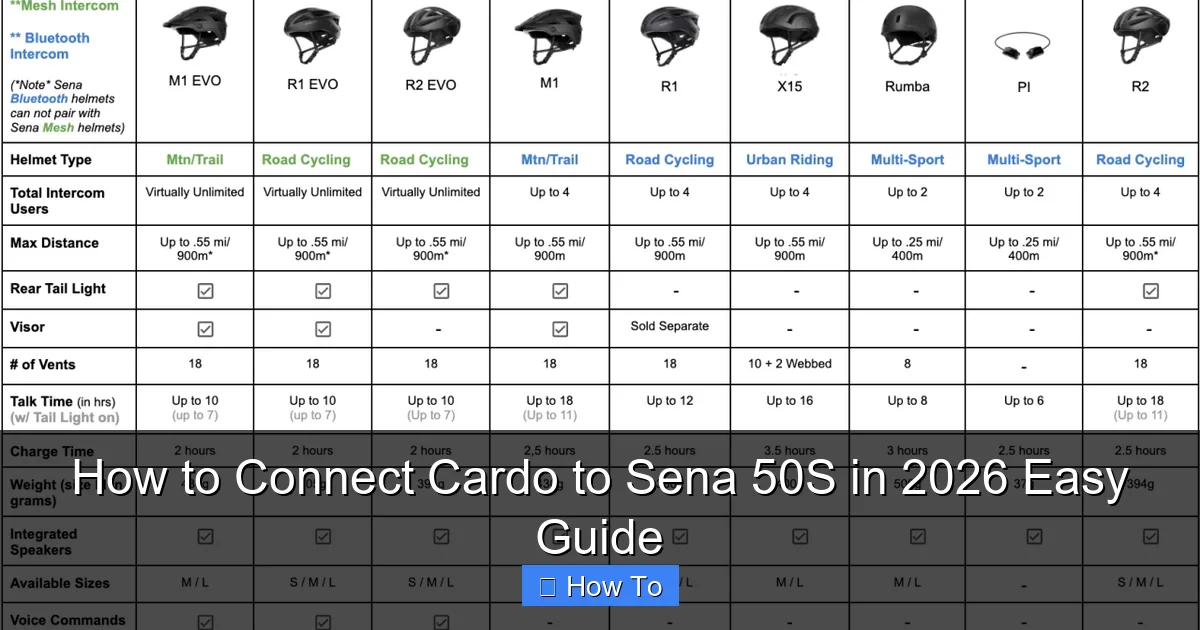
Visual guide about How to Connect Cardo to Sena 50S in 2026 Easy Guide
Image source: kb.propelbikes.com
- A Cardo Bluetooth headset (e.g., Cardo Packtalk, Freecom, or Dynamic series)
- A Sena 50S headset
- Fully charged batteries on both devices
- Access to the Cardo Connect and Sena Device Manager apps (via smartphone)
- A quiet environment for initial setup
Pro Tip: Charge both headsets to 100% before starting. Low battery can cause pairing failures or interruptions.
Step 1: Update Firmware on Both Devices
Firmware updates are critical for cross-brand compatibility. In 2026, both Cardo and Sena regularly release updates that improve Bluetooth stability and intercom features.
Update Your Cardo System
- Download the Cardo Connect app from the App Store or Google Play.
- Turn on your Cardo headset and pair it with your phone via Bluetooth.
- Open the app and tap “My Devices.”
- Select your headset and check for firmware updates.
- If an update is available, follow the on-screen instructions to install it.
Update Your Sena 50S
- Download the Sena Device Manager app.
- Connect your Sena 50S to your phone via Bluetooth.
- Open the app and select your device.
- Tap “Firmware Update” and follow the prompts.
- Wait for the update to complete—do not turn off the device during this process.
Note: Firmware updates can take 5–10 minutes. Ensure your phone stays connected and the headset remains powered on.
Step 2: Enable Universal Intercom Mode
To connect different brands, you must use Universal Intercom (UI) mode. This feature allows headsets from different manufacturers to communicate using a common Bluetooth protocol.
On the Cardo System
- Power on your Cardo headset.
- Press and hold the Phone Button for 5 seconds until you hear “Universal Intercom.”
- The LED will flash blue and red alternately, indicating UI mode is active.
On the Sena 50S
- Power on the Sena 50S.
- Press and hold the Intercom Button for 6 seconds.
- You’ll hear a voice prompt: “Universal Intercom pairing.”
- The LED will blink blue and red—this means it’s ready to pair.
Tip: If you don’t hear the voice prompt, try resetting the headset and repeating the step. Some older firmware versions may require a double-tap instead of a long press.
Step 3: Pair the Devices
Now that both devices are in Universal Intercom mode, it’s time to pair them.
Initiate Pairing
- Bring the two headsets within 1 meter (3 feet) of each other.
- On the Cardo, press the Intercom Button once.
- On the Sena 50S, press the Intercom Button once.
- Wait for both devices to emit a confirmation tone or voice prompt (e.g., “Intercom connected”).
If successful, the LED lights on both devices will turn solid blue. You should now be able to communicate via intercom.
Test the Connection
- Put on both headsets (or place them near each other).
- Press the intercom button on one device and speak.
- You should hear your voice on the other headset.
- Try a two-way conversation to confirm audio clarity.
Note: Audio quality may not match same-brand performance. Features like advanced noise cancellation or voice commands may be limited in UI mode.
Step 4: Optimize Audio Settings
For the best experience, fine-tune your audio settings after pairing.
Adjust Volume and Sensitivity
- Use the volume buttons on each headset to balance audio levels.
- On the Sena 50S, you can adjust microphone sensitivity via the Sena Device Manager app under “Audio Settings.”
- On Cardo, use the Cardo Connect app to tweak voice activation sensitivity and background noise filtering.
Reduce Wind Noise
Wind noise can interfere with cross-brand communication. To minimize it:
- Ensure your helmet fit is snug—loose helmets create more turbulence.
- Use a foam windscreen over the microphone if your model supports it.
- Enable “Wind Noise Reduction” in the Cardo Connect app if available.
For more tips on reducing wind noise, check out our guide on how to reduce wind noise in your helmet.
Troubleshooting Common Issues
Even with proper setup, you might run into problems. Here’s how to fix the most common ones.
Devices Won’t Pair
- Solution: Perform a factory reset on both headsets.
- On Cardo: Hold Phone + Volume Down for 10 seconds.
- On Sena 50S: Hold Phone + Intercom for 10 seconds.
- Re-enable Universal Intercom mode and try pairing again.
Audio Cuts Out or Is Distorted
- Solution:
- Ensure both devices are within 10 meters (33 feet) during use.
- Avoid riding in areas with heavy Bluetooth interference (e.g., cities with many devices).
- Update firmware again—sometimes a second update fixes audio bugs.
One-Way Audio Only
- Solution:
- Check microphone placement—ensure it’s close to your mouth.
- Clean the mic port with compressed air (see our guide on how to clean motorcycle helmet pads for safe cleaning tips).
- Re-pair the devices in a quiet environment.
Universal Mode Not Activating
- Solution:
- Confirm your Cardo model supports Universal Intercom (most 2020+ models do).
- On Sena 50S, ensure you’re holding the Intercom button long enough—some users tap instead of hold.
- Try using the Sena Device Manager app to enable UI mode remotely.
Tips for Best Performance in 2026
To get the most out of your Cardo-to-Sena 50S connection, follow these expert tips:
- Ride in open areas: Bluetooth range drops significantly in tunnels or urban canyons.
- Use a dedicated channel: If riding in a large group, assign one pair to a specific “channel” to avoid cross-talk.
- Keep devices cool: Overheating can cause Bluetooth instability—avoid direct sunlight on your helmet.
- Regularly clean your headset: Dirt and moisture can affect microphone and speaker performance. Learn how to clean a motorcycle helmet visor and pads safely.
Conclusion: Enjoy Cross-Brand Communication
Connecting a Cardo system to a Sena 50S in 2026 is a smart way to stay connected with riders using different gear. While full feature parity isn’t possible across brands, Universal Intercom mode delivers reliable, clear communication for group rides, safety alerts, and casual conversation.
By following this guide—updating firmware, enabling UI mode, and optimizing settings—you’ll enjoy a seamless experience. And if you run into issues, the troubleshooting steps above will get you back on track quickly.
Now that you’re set up, hit the road with confidence. Whether you’re touring coast-to-coast or cruising local highways, your intercom connection is ready. For more riding tips, check out our guide on how to listen to music while riding a motorcycle to enhance your audio experience even further.