How to Set Up Cardo Packtalk Edge in 2026

This guide walks you through how to set up Cardo Packtalk Edge in 2026, from unboxing to full connectivity. You’ll learn mounting, pairing, app setup, and troubleshooting tips for a smooth ride.
How to Set Up Cardo Packtalk Edge in 2026
Welcome to your complete guide on how to set up Cardo Packtalk Edge in 2026. Whether you’re a weekend rider or a daily commuter, the Packtalk Edge offers crystal-clear audio, long-range intercom, and smart voice control. By the end of this guide, you’ll have your device mounted, paired, and ready to use with confidence.
This step-by-step walkthrough covers everything from unboxing to advanced features. We’ll also share practical tips and troubleshooting advice to keep your system running smoothly. Let’s get started!
Step 1: Unbox and Inspect Your Packtalk Edge
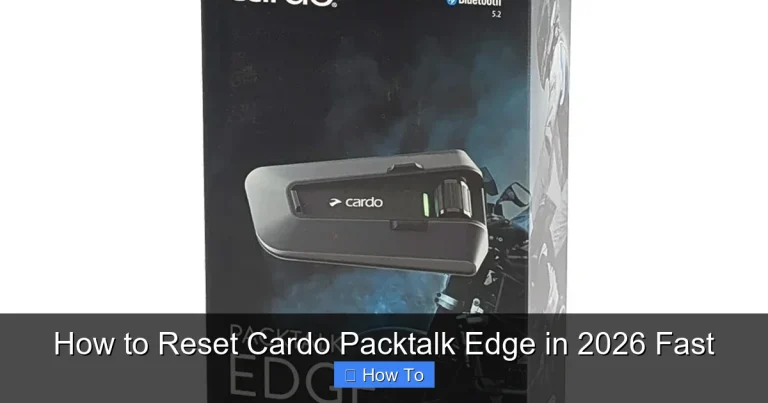
When you first open the box, you’ll find the Packtalk Edge unit, a clamp mount, an adhesive mount, a USB-C charging cable, foam speaker pads, and a quick-start guide. Take a moment to check that all parts are present and undamaged.
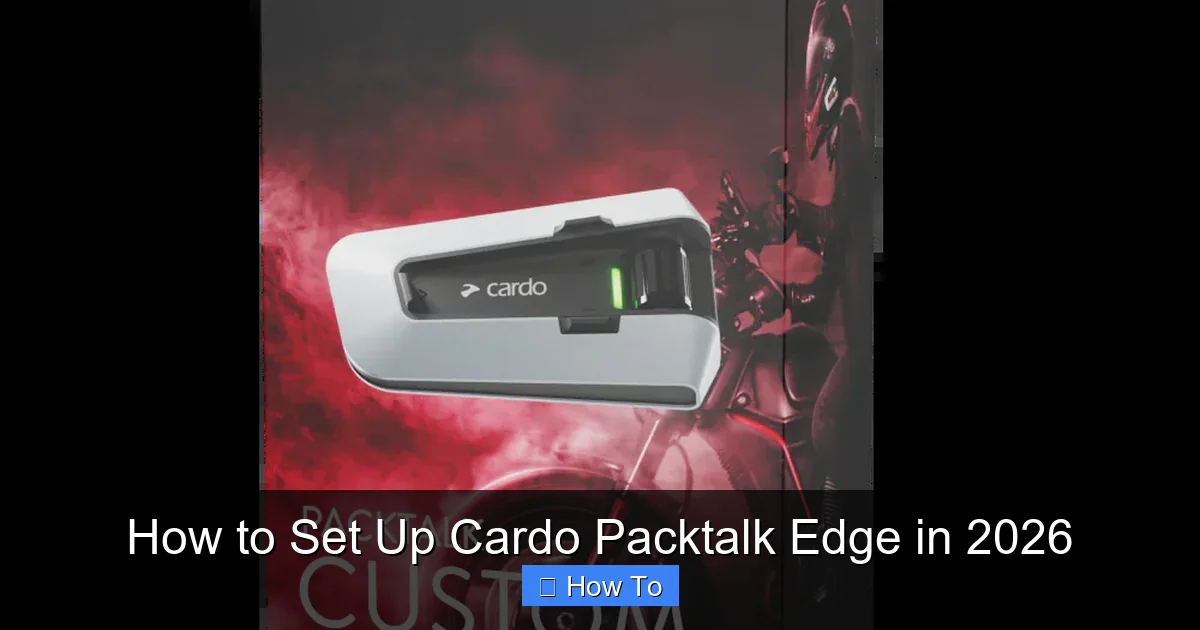
Visual guide about How to Set Up Cardo Packtalk Edge in 2026
Image source: cardosystems.com
What’s in the Box?
- Packtalk Edge communication unit
- Clamp mount (for most helmets)
- Adhesive mount (for helmets without space for clamps)
- USB-C charging cable
- Speaker pads (small and large)
- Microfiber cloth
- Quick-start guide
Pro Tip: Keep the packaging until you’ve tested everything. If something’s missing, you can return or exchange it easily.
Step 2: Choose the Right Mounting Method
The Packtalk Edge offers two mounting options: the clamp mount and the adhesive mount. Your choice depends on your helmet type and personal preference.
Using the Clamp Mount
The clamp mount is ideal for full-face and modular helmets with a side rail. It’s secure, removable, and doesn’t damage your helmet.
- Open the clamp and slide it onto the left side of your helmet (recommended for right-handed riders).
- Tighten the screw until it’s snug—don’t over-tighten.
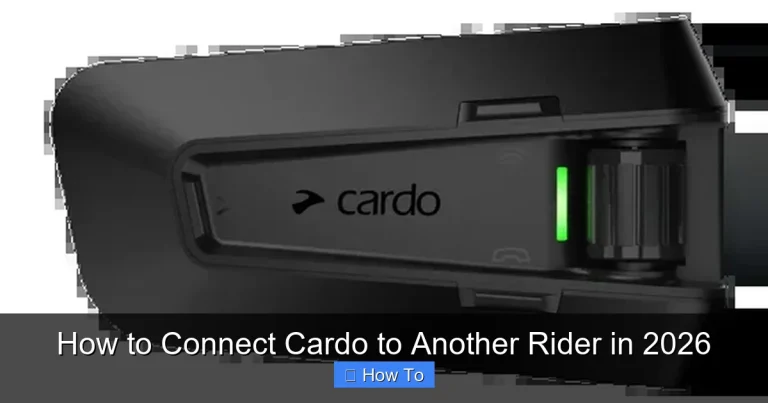
- Attach the Packtalk Edge to the mount by sliding it in until it clicks.
Using the Adhesive Mount
If your helmet doesn’t support a clamp, use the adhesive mount. It sticks directly to the helmet shell.
- Clean the helmet surface with the included cloth or rubbing alcohol.
- Peel off the adhesive backing and press the mount firmly in place.
- Wait 24 hours before attaching the unit for maximum hold.
Note: Avoid placing the mount near vents or curved areas. A flat, clean surface works best.
Step 3: Install the Speakers and Microphone
Good audio starts with proper speaker and mic placement. The Packtalk Edge uses dual 40mm JBL speakers for rich sound.
Installing the Speakers
- Remove the helmet padding where the speakers will go (usually near your ears).
- Place the speakers into the ear cavities, ensuring they sit flat against your ears.
- Use the foam pads to secure them and reduce vibration noise.
- Reinsert the padding to hold everything in place.
Positioning the Microphone
- For full-face helmets, use the boom mic. Extend it toward your mouth, about 1–2 cm away.
- For open-face helmets, use the wired mic. Stick it to the inside of the chin bar, close to your mouth.
- Make sure the mic doesn’t touch your lips or skin to avoid muffled sound.
Tip: Test the mic by recording a voice note on your phone. Adjust if needed for clarity.
Step 4: Charge the Device
The Packtalk Edge has a 13-hour battery life and charges via USB-C. A full charge takes about 2 hours.
How to Charge
- Connect the USB-C cable to the port on the side of the unit.
- Plug the other end into a wall adapter or power bank.
- The LED will glow red while charging and turn blue when full.
Pro Tip: Charge before your first ride. A low battery can cause pairing issues.
Step 5: Download the Cardo Connect App
The Cardo Connect app (available on iOS and Android) is essential for setup, updates, and customization.
App Setup Steps
- Download “Cardo Connect” from the App Store or Google Play.
- Open the app and create an account (or log in if you already have one).
- Turn on your Packtalk Edge by holding the main button for 3 seconds.
- The LED will flash blue and red—this means it’s in pairing mode.
- In the app, tap “Add Device” and follow the prompts to connect.
Note: Make sure Bluetooth is enabled on your phone. The app will guide you through the rest.
Step 6: Pair with Your Phone and Other Riders
Once the app connects, you can pair your phone and set up intercom with other riders.
Pairing with Your Phone
- In the app, go to “Device Settings” > “Bluetooth Pairing.”
- Select your phone from the list and confirm the pairing code.
- Test by playing music or making a call.
Setting Up Intercom with Other Riders
- Turn on intercom mode by saying “Hey Cardo, start intercom” or using the app.
- Have other riders do the same. The system uses Dynamic Mesh Communication (DMC) to connect up to 15 riders.
- You’ll hear a chime when connected. Test by speaking—audio should be clear and lag-free.
Tip: DMC automatically reconnects riders if someone drops out and returns. No manual re-pairing needed.
Step 7: Customize Settings via the App
The Cardo Connect app lets you personalize your experience. Here are key settings to adjust:
Audio Settings
- Adjust volume levels for music, calls, and intercom.
- Enable “Natural Voice Operation” for hands-free control.
- Set audio priority (e.g., lower music when someone speaks).
Voice Commands
- Say “Hey Cardo” to activate voice control.
- Use commands like “Play music,” “Call John,” or “Next track.”
- Customize wake words in the app if needed.
Firmware Updates
- The app checks for updates automatically.
- Install updates to get new features and bug fixes.
- Updates take 5–10 minutes and require a stable connection.
Step 8: Test Everything Before Riding
Before hitting the road, do a full system check.
Quick Test Checklist
- Speakers: Play music and check volume and clarity.
- Microphone: Record a voice note or ask a friend to listen.
- Intercom: Connect with another rider and test range.
- Phone calls: Make a test call to ensure call quality.
- Battery: Confirm charge level in the app.
Tip: If you ride with glasses, check out our guide on how to create glasses space in motorcycle helmet to avoid discomfort.
Troubleshooting Common Issues
Even with the best setup, issues can happen. Here’s how to fix the most common ones.
No Sound from Speakers
- Check volume levels in the app and on your phone.
- Ensure speakers are properly seated in the helmet.
- Re-pair the device with your phone.
Microphone Not Picking Up Voice
- Adjust the mic position—too far or too close causes issues.
- Clean the mic mesh with a dry cloth.
- Test in a quiet environment to rule out wind noise.
Intercom Drops Frequently
- Make sure all riders are within 1.6 km range.
- Avoid riding in dense urban areas with signal interference.
- Update firmware on all devices.
Device Won’t Turn On
- Charge for at least 30 minutes.
- Hold the power button for 10 seconds to force restart.
- Try a different USB-C cable or charger.
Need help with helmet comfort? Learn how to clean motorcycle helmet pads to keep your ride fresh and hygienic.
Conclusion
Setting up your Cardo Packtalk Edge in 2026 is straightforward when you follow these steps. From mounting and pairing to customizing settings, this guide ensures you get the most out of your device. With features like Dynamic Mesh Communication, voice control, and 13-hour battery life, the Packtalk Edge is built for modern riders.
Remember to keep your firmware updated, test your audio regularly, and ride safely. And if you ever face issues, the Cardo Connect app and this guide have you covered. Now, go enjoy the open road—connected, clear, and confident.
For more tips on enhancing your ride, check out our guide on how to listen to music while riding a motorcycle for the best audio experience.