How to Connect Cardo to App Easy Guide 2026

This guide walks you through how to connect Cardo to app in 2026, covering setup, pairing, and troubleshooting. Get your Cardo headset synced with the Cardo Connect app quickly and safely for music, calls, and intercom use.
Why Connect Your Cardo to the App?
In 2026, riding with a Cardo communication system isn’t just about hearing your friends—it’s about total control. The Cardo Connect app unlocks advanced features like voice command customization, firmware updates, noise control tuning, and even GPS-based ride tracking. Whether you’re commuting daily or touring cross-country, connecting your Cardo to the app ensures you get the most out of your investment.
This guide will show you exactly how to connect Cardo to app in simple, clear steps. No tech jargon, no confusion—just reliable instructions that work for all recent Cardo models, including the Packtalk Bold, Slim, and Dynamic Pro.
You can also see: Cardo Freecom 4x vs Packtalk Edge: My Bold Comparison 2026
Step 1: Download the Cardo Connect App
Before you can pair your headset, you need the official app. The Cardo Connect app is free and available on both major mobile platforms.

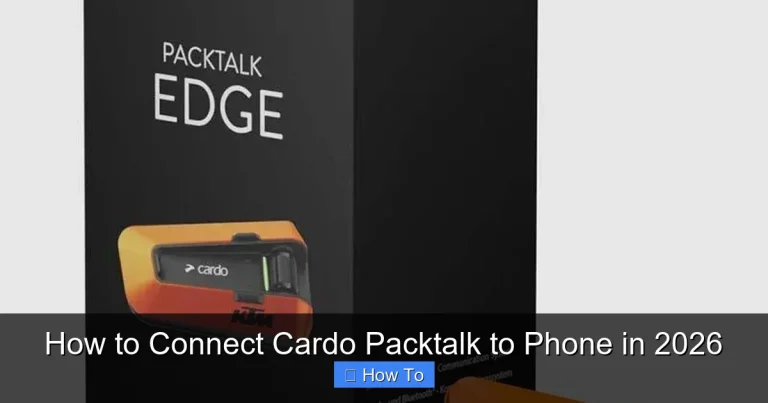
Visual guide about How to Connect Cardo to App in 2026 Easy Guide
Image source: cardosystems.com
For iPhone Users
- Open the App Store.
- Search for “Cardo Connect.”
- Tap “Get” to download and install.
- Allow notifications and location access when prompted (needed for Bluetooth and ride stats).
For Android Users
- Open the Google Play Store.
- Type “Cardo Connect” in the search bar.
- Select the official app by Cardo Systems Ltd.
- Tap “Install” and wait for completion.
- Grant necessary permissions during first launch.
Pro Tip: Make sure your phone’s operating system is up to date. Older versions may cause compatibility issues with newer Cardo firmware.
Step 2: Prepare Your Cardo Headset
Your Cardo device must be ready before pairing. Skipping this step is a common reason for failed connections.
Charge Your Device
- Use the original USB-C cable (most 2026 models use USB-C).
- Plug into a wall charger—not a computer—for faster charging.
- Wait until the LED shows solid green (usually 2–3 hours for a full charge).
Note: A red or blinking light means low battery. Don’t attempt pairing until fully charged.
Power On the Headset
- Press and hold the power button (usually the large center button) for 3 seconds.
- You’ll hear a voice prompt: “Power on.”
- The LED will flash blue—this means it’s in standby mode and ready to pair.
Step 3: Enable Bluetooth on Your Phone
Bluetooth is the bridge between your phone and Cardo. Without it enabled, pairing won’t work.
On iPhone
- Go to Settings > Bluetooth.
- Toggle Bluetooth to “On.”
- Ensure your phone is discoverable (it usually is by default when Bluetooth is on).
On Android
- Swipe down from the top of your screen to open Quick Settings.
- Tap the Bluetooth icon to turn it on.
- Alternatively, go to Settings > Connected devices > Connection preferences > Bluetooth.
Important: Keep your phone within 3 feet of the Cardo headset during pairing to ensure a strong signal.
Step 4: Pair Your Cardo to Your Phone
Now comes the core step: establishing the Bluetooth link.
Initiate Pairing Mode on Cardo
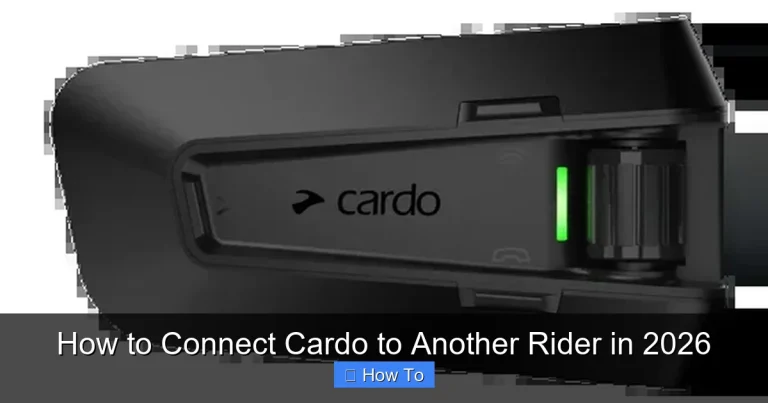
- With the headset powered on, press and hold the phone button (often labeled with a phone icon) for 5–7 seconds.
- You’ll hear a voice say: “Phone pairing.”
- The LED will flash red and blue alternately—this confirms pairing mode is active.
Select Cardo on Your Phone
- On your phone, go back to the Bluetooth settings screen.
- Wait a few seconds—your Cardo model name (e.g., “Cardo Packtalk Bold”) should appear under “Other Devices.”
- Tap on it to connect.
- If prompted for a PIN, enter 0000 (four zeros)—this is the default for all Cardo devices.
Once connected, you’ll hear: “Phone connected.” The LED on the headset will turn solid blue.
Step 5: Open the Cardo Connect App and Complete Setup
Pairing via Bluetooth is only half the job. The app adds smart features and personalization.
Launch the App
- Open the Cardo Connect app on your phone.
- Grant location and microphone permissions if asked.
- The app will automatically detect your connected Cardo device.
Follow On-Screen Prompts
- The app may ask you to confirm your model and region.
- It will check for firmware updates—always allow this. Updated firmware improves battery life, sound quality, and stability.
- You’ll be guided to set up voice commands, preferred language, and intercom preferences.
Bonus Feature: Enable “Ride Analytics” to track distance, speed, and route history—great for long-distance riders.
Step 6: Test Your Connection
Don’t assume it’s working—test it!
Make a Test Call
- Call a friend or use a voicemail service.
- Speak clearly—your voice should transmit without echo or dropout.
- Ask them to confirm audio quality.
Play Music or Podcasts
- Open Spotify, Apple Music, or your preferred app.
- Play a song—sound should come through both speakers in your helmet.
- Use the Cardo’s jog dial or voice commands (“Hey Cardo, next track”) to control playback.
Test Intercom (If Riding with Others)
- Have a passenger with a compatible Cardo put on their headset.
- Say “Hey Cardo, call [rider name]” or press the intercom button.
- You should hear each other clearly, even at highway speeds.
Troubleshooting Common Issues
Even in 2026, tech hiccups happen. Here’s how to fix the most common problems.
“Cardo Not Showing Up in Bluetooth List”
- Ensure the headset is in pairing mode (red/blue flashing light).
- Restart Bluetooth on your phone.
- Move closer to the device—walls or metal objects can block signals.
- Try turning the headset off and on again.
“App Says ‘Device Not Found’”
- Close and reopen the Cardo Connect app.
- Make sure Bluetooth is still connected (check phone settings).
- Update the app from the App Store or Google Play.
- Re-pair the device if needed.
“Poor Audio Quality or Dropouts”
- Check for firmware updates in the app.
- Reduce background apps using Bluetooth (like smartwatches).
- Clean the microphone mesh on your Cardo—dirt muffles sound.
- See our guide on how to clean motorcycle helmet pads for tips on maintaining audio components.
“Can’t Connect After Phone Update”
- iOS and Android updates sometimes reset Bluetooth permissions.
- Go to phone settings and re-enable Bluetooth access for Cardo.
- Re-pair the device if necessary.
Advanced Tips for 2026 Riders
Once connected, explore these pro features:
- Custom Voice Prompts: Change “Phone connected” to “Ready to ride” in the app.
- Noise Cancellation Tuning: Adjust mic sensitivity based on wind conditions—ideal for open-face helmets. Learn more in our article on how to reduce wind noise in your helmet.
- Dual Device Pairing: Connect to your phone and a GPS unit simultaneously (e.g., Garmin Zumo).
- Safety Alerts: Enable crash detection and emergency contact alerts (available on Dynamic Pro models).
Conclusion
Connecting your Cardo to the app in 2026 is simpler than ever—but only if you follow the right steps. By downloading the Cardo Connect app, charging your device, enabling Bluetooth, and pairing correctly, you’ll unlock a smarter, safer riding experience. Remember to test your setup before hitting the road, and keep your firmware updated for peak performance.
Whether you’re listening to music, chatting with your riding group, or navigating with voice-guided GPS, a properly connected Cardo system enhances every mile. And if you ever run into issues, a quick reset or firmware update usually does the trick. For more gear tips, check out our guide on how to listen to music while riding a motorcycle—it pairs perfectly with your new Cardo setup!