How to Pair Cardo FREECOM a Simple Guide 2026

Pairing your Cardo FREECOM 2 in 2026 is quick and easy with the right steps. This guide walks you through Bluetooth setup, intercom linking, and troubleshooting for seamless communication on the road.
Introduction: Why Pairing Your Cardo FREECOM 2 Matters in 2026
Whether you’re cruising solo or riding with a pack, staying connected makes every mile safer and more enjoyable. The Cardo FREECOM 2 remains one of the most reliable Bluetooth helmet intercoms in 2026—thanks to regular firmware updates and strong community support. But even the best tech needs proper setup. In this guide, you’ll learn exactly how to pair Cardo FREECOM 2 with your smartphone, another rider’s headset, or multiple devices—all in just a few minutes. We’ll cover everything from initial power-up to advanced group linking, plus tips to keep your connection strong on long rides.
You can also see: Cardo Freecom 4x vs Packtalk Edge: My Bold Comparison 2026
What You’ll Need Before Starting
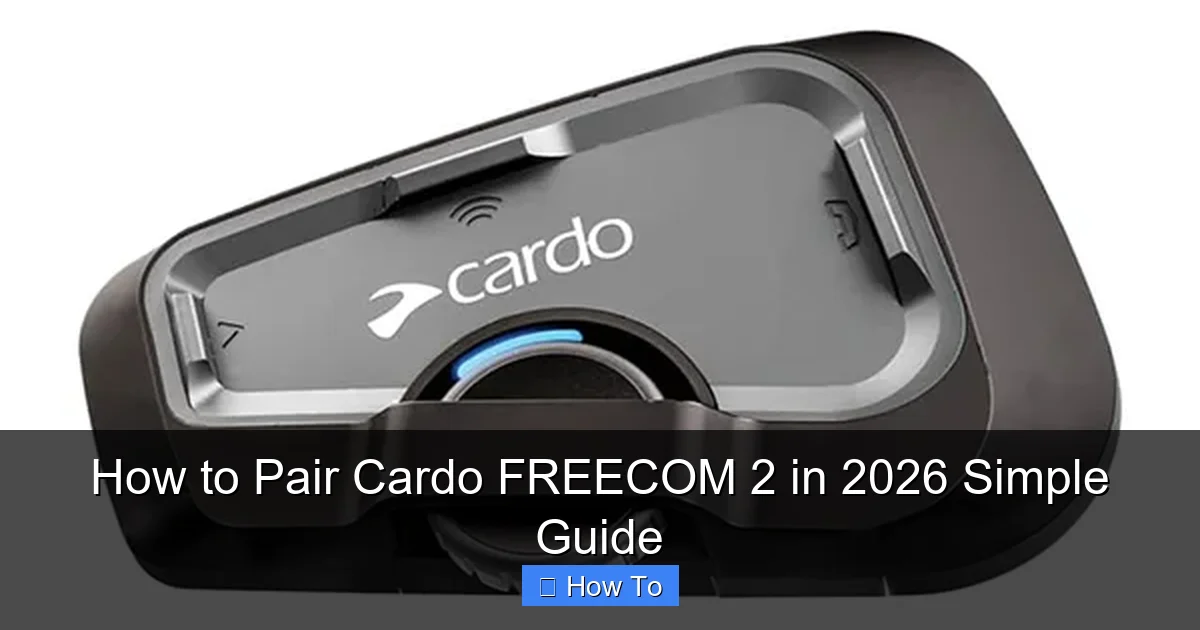
Visual guide about How to Pair Cardo FREECOM 2 in 2026 Simple Guide
Image source: helmetintercoms.com
Before diving into pairing, make sure you have:
- A fully charged Cardo FREECOM 2 unit (at least 50% battery recommended)
- Your smartphone with Bluetooth enabled
- The latest version of the Cardo Connect app (available on iOS and Android)
- Another FREECOM 2 or compatible Cardo headset (if pairing for intercom)
Pro tip: If you’re installing the unit in your helmet for the first time, check out our guide on how to secure your helmet properly to avoid wind noise or movement during rides.
Step 1: Power On and Enter Pairing Mode
First, turn on your FREECOM 2 by pressing and holding the **Phone Button** (the middle button) for about 3 seconds until you hear “Power On.”
Activate Bluetooth Discovery
To pair with your phone:
- Press and hold the **Phone Button** again for **5 seconds**.
- You’ll hear “Phone pairing” — this means the device is now discoverable.
- On your smartphone, go to Settings > Bluetooth and look for “Cardo FREECOM 2.”
- Tap to connect. You may be prompted to enter a PIN—use 0000 if asked.
Once connected, you’ll hear “Phone connected” through the speakers. That’s it—your phone is paired!
Step 2: Pair with Another Rider (Intercom Setup)
Now let’s link your FREECOM 2 to a friend’s unit for real-time chat. Both riders must follow these steps simultaneously.
Enter Intercom Pairing Mode
- Make sure both headsets are powered on.
- On both units, press and hold the **Intercom Button** (left button) for **5 seconds** until you hear “Intercom pairing.”
- Wait up to 30 seconds—the devices will automatically search and connect.
- You’ll hear “Intercom connected” when successful.
💡 Tip: For best results, keep the headsets within 3 feet of each other during pairing. Once linked, they’ll remember each other—even after powering off.
Step 3: Enable Dynamic Mesh Communication (DMC) in 2026
One of the biggest upgrades in recent firmware is enhanced **Dynamic Mesh Communication (DMC)**. Unlike old-school Bluetooth intercoms that drop connections when riders fall out of range, DMC lets your group reorganize automatically—perfect for winding roads or split routes.
How to Activate DMC
- Open the Cardo Connect app on your phone.
- Tap your FREECOM 2 device.
- Go to Intercom Settings > DMC Mode and toggle it ON.
- Invite other DMC-compatible riders (up to 15 total).
Once active, your group stays connected even if someone temporarily drops back—no manual re-pairing needed. This 2026-ready feature is a game-changer for touring crews.
Step 4: Pair Multiple Devices (Phone + Music + GPS)
The FREECOM 2 supports multi-point Bluetooth, meaning you can connect to your phone *and* a GPS unit or music player at the same time.
Connect a Second Device
- Ensure your phone is already paired.
- Put your second device (e.g., Garmin GPS) into pairing mode.
- On the FREECOM 2, press and hold the **Music Button** (right button) for 5 seconds until you hear “Music pairing.”
- Select “Cardo FREECOM 2” from your second device’s Bluetooth list.
Now you can take calls, listen to Spotify, *and* get turn-by-turn directions—all without missing a beat.
Troubleshooting Common Pairing Issues
Even in 2026, tech hiccups happen. Here’s how to fix the most frequent problems:
“My phone won’t find the FREECOM 2”
– Make sure the unit is in pairing mode (“Phone pairing” audio cue).
– Turn Bluetooth off and on again on your phone.
– Move away from other Bluetooth devices (like smartwatches or car systems).
“Intercom keeps disconnecting”
– Update both headsets using the Cardo Connect app.
– Ensure DMC is enabled if riding in a group.
– Check battery levels—low power can weaken signals.
“No audio after pairing”
– Adjust volume using the +/- buttons.
– Test with a different app (e.g., call vs. music).
– Clean speaker grilles—dirt or moisture can muffle sound. For help, see our guide on how to clean motorcycle helmet pads, which often affects audio clarity too.
Factory Reset (Last Resort)
If nothing works:
- Power on the unit.
- Press and hold **all three buttons** (Phone, Intercom, Music) for 10 seconds.
- You’ll hear “Factory reset” — release the buttons.
- Re-pair from scratch.
⚠️ Note: This erases all saved pairings, so only use it when necessary.
Pro Tips for 2026 Riders
– **Update monthly**: Cardo releases small but important firmware tweaks throughout the year. Enable auto-updates in the app.
– **Use voice commands**: Say “Hey Cardo” to answer calls or skip tracks hands-free.
– **Reduce wind noise**: Pair your intercom with a well-fitted helmet. Check out our tips on how to reduce wind noise in your helmet for clearer conversations.
– **Carry a backup charger**: Long rides drain batteries faster—especially with DMC active. A 10,000mAh power bank fits easily in most saddlebags.
Conclusion: Stay Connected, Stay Safe
Pairing your Cardo FREECOM 2 in 2026 doesn’t have to be complicated. With the right steps—and a little patience—you’ll be chatting with your riding crew, streaming music, and navigating with confidence in under 10 minutes. Remember: always start with a full charge, use the Cardo Connect app for updates, and don’t skip the voice test after pairing. Whether you’re commuting downtown or exploring mountain passes, clear communication turns every ride into an adventure. Now go hit the road—your headset is ready!