How to Connect Cardo Packtalk to Phone in 2026

Connecting your Cardo Packtalk to your phone in 2026 is simple and essential for hands-free calls, music streaming, and GPS navigation. This guide walks you through Bluetooth pairing, app setup, and common fixes to ensure a smooth, reliable connection every time.
How to Connect Cardo Packtalk to Phone in 2026
If you’re a motorcyclist in 2026, you know that staying connected while riding isn’t just convenient—it’s essential. Whether you’re navigating with GPS, taking hands-free calls, or streaming your favorite playlist, your Cardo Packtalk system is your go-to communication hub. But to unlock all these features, you need to properly connect your Packtalk to your phone.
In this guide, we’ll walk you through the complete process of connecting your Cardo Packtalk to your smartphone. We’ll cover everything from initial setup to troubleshooting common issues. By the end, you’ll be ready to ride with seamless audio and communication. Plus, we’ll share expert tips to keep your connection stable and your experience smooth.
Also see: Cardo Freecom 4x vs Packtalk Edge: My Bold Comparison 2026
What You’ll Need

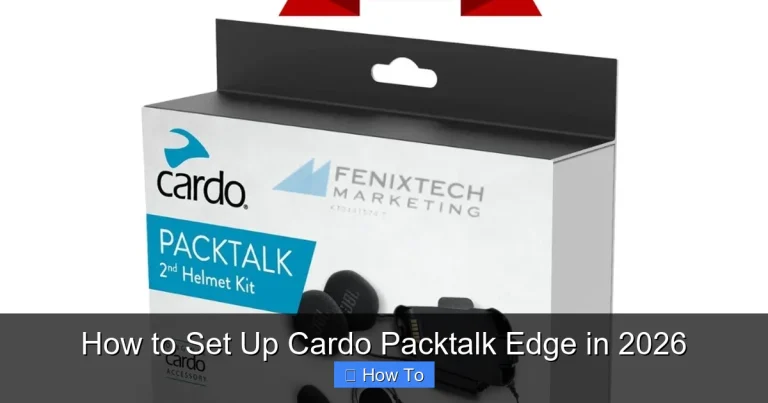
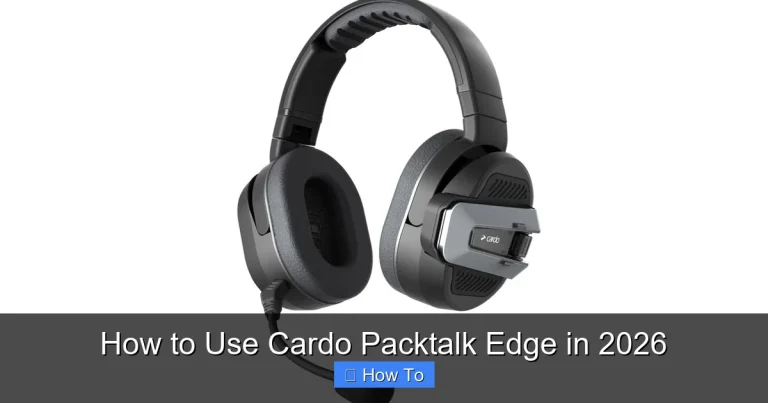
Visual guide about How to Connect Cardo Packtalk to Phone in 2026
Image source: ruroc.com
Before we dive in, make sure you have the following:
- Your Cardo Packtalk device (any model: Bold, Slim, or Dynamic Pro)
- A fully charged smartphone with Bluetooth enabled
- The latest version of the Cardo Connect app (available on iOS and Android)
- A quiet environment for initial pairing (to avoid interference)
Having these ready will make the process faster and more reliable.
Step 1: Charge Your Packtalk
It might seem obvious, but a dead battery is one of the most common reasons for connection failure. Before pairing, ensure your Packtalk is fully charged.
How to Charge
- Use the original USB-C cable (or micro-USB for older models) to connect your Packtalk to a power source.
- Charging takes about 2–3 hours for a full charge.
- The LED indicator will turn solid green when fully charged.
Pro Tip: Charge your Packtalk the night before a long ride. This ensures maximum battery life and avoids mid-ride disconnections.
Step 2: Put Your Packtalk in Pairing Mode
Now that your device is charged, it’s time to activate pairing mode.
For Most Packtalk Models (Bold, Slim, Dynamic Pro)
- Turn on your Packtalk by pressing and holding the power button for 3 seconds.
- Once powered on, press and hold the Phone Button (usually the center button) for 5–7 seconds.
- The LED will flash red and blue alternately, indicating pairing mode.
For Older Models (e.g., Packtalk Black)
- Press and hold the Volume Up and Phone buttons simultaneously for 5 seconds.
- Wait for the red-blue flashing light.
Note: If the LED flashes only red, the device is in intercom mode. Repeat the steps to enter phone pairing mode.
Step 3: Enable Bluetooth on Your Phone
Next, make sure your phone’s Bluetooth is turned on.
On iPhone (iOS 17 or later)
- Go to Settings > Bluetooth.
- Toggle Bluetooth to On.
- Wait for your phone to scan for devices.
On Android (Android 14 or later)
- Open Settings > Connected Devices > Bluetooth.
- Turn on Bluetooth and tap Scan.
Your phone should now detect nearby Bluetooth devices.
Step 4: Pair Your Phone with Packtalk
Once your phone detects the Packtalk, it’s time to connect.
Select Your Device
- Look for a device named Cardo Packtalk, Packtalk Bold, or similar in the list.
- Tap on it to initiate pairing.
Enter Pairing Code (if prompted)
- Most modern phones will connect automatically without a code.
- If asked, enter 0000 or 1234—these are the default codes for Cardo devices.
Confirm Connection
- Your phone will show “Connected” or “Paired” next to the device name.
- The Packtalk LED will turn solid blue, indicating a successful connection.
Example: If you’re using an iPhone 15 Pro, you’ll see “Packtalk Bold” under “My Devices” with a checkmark once connected.
Step 5: Install and Set Up the Cardo Connect App
While Bluetooth pairing is complete, downloading the Cardo Connect app unlocks advanced features like voice commands, firmware updates, and custom audio profiles.
Download the App
- Open the App Store (iOS) or Google Play Store (Android).
- Search for “Cardo Connect” and download the official app.
Log In or Create an Account
- Open the app and sign in with your Cardo account.
- If you don’t have one, tap “Create Account” and follow the prompts.
Link Your Packtalk
- The app will automatically detect your connected Packtalk.
- Follow the on-screen instructions to complete setup.
- Enable permissions for microphone, location, and notifications.
Why Use the App? It lets you update firmware, adjust equalizer settings, and even track your ride stats. It’s a must-have for 2026 riders.
Step 6: Test Your Connection
Now that everything is set up, test your connection to ensure it works properly.
Test 1: Make a Call
- Dial a friend or use a test call service.
- Speak clearly and ask if they can hear you.
- Check if audio comes through the helmet speakers.
Test 2: Play Music
- Open Spotify, Apple Music, or any audio app.
- Play a song and confirm sound quality.
- Use voice commands like “Hey Cardo, play music” if supported.
Test 3: Use GPS Navigation
- Open Google Maps or Waze.
- Start navigation and listen for turn-by-turn directions.
- Ensure audio doesn’t cut out or lag.
If all tests pass, you’re ready to ride!
Troubleshooting Common Issues
Even with perfect setup, issues can arise. Here’s how to fix the most common problems.
Issue 1: Phone Doesn’t Detect Packtalk
- Ensure Packtalk is in pairing mode (red-blue flashing light).
- Restart Bluetooth on your phone.
- Move closer—stay within 3 feet during pairing.
- Try pairing in a different location to avoid interference.
Issue 2: Connection Drops Frequently
- Update your Packtalk firmware via the Cardo Connect app.
- Check for phone software updates.
- Avoid using multiple Bluetooth devices simultaneously.
- Reset network settings on your phone if needed.
Issue 3: Poor Audio Quality
- Clean the microphone and speakers with a soft cloth.
- Adjust volume levels on both phone and Packtalk.
- Use the app to tweak audio settings (e.g., bass, treble).
- Check for wind noise—consider using a wind noise reducer.
Issue 4: App Won’t Connect to Packtalk
- Ensure Bluetooth is on and Packtalk is connected.
- Force close and reopen the app.
- Reinstall the app if issues persist.
- Contact Cardo support if the problem continues.
Tips for a Reliable Connection in 2026
Technology evolves, and so do best practices. Here’s how to stay ahead:
- Update firmware monthly. Cardo releases updates to improve stability and add features.
- Avoid extreme temperatures. Heat and cold can affect battery and Bluetooth performance.
- Use a dedicated phone mount. Keeps your device secure and reduces signal loss.
- Pair only one phone at a time. Dual pairing can cause conflicts.
- Clean your helmet regularly. Dirt and moisture can affect microphone and speaker performance. Learn how to clean helmet pads and visor for best results.
Conclusion
Connecting your Cardo Packtalk to your phone in 2026 is a straightforward process—when you know the steps. From charging your device to testing audio quality, each step ensures a safe, enjoyable riding experience. With the Cardo Connect app, you gain access to powerful features that enhance communication, navigation, and entertainment.
Remember, a strong connection starts with preparation. Keep your firmware updated, your device charged, and your phone nearby during setup. And if you run into issues, the troubleshooting tips above will get you back on track quickly.
Now that you’re connected, enjoy the freedom of hands-free riding. Whether you’re cruising down the highway or navigating city streets, your Packtalk keeps you linked to what matters most—without taking your hands off the handlebars.
Ready to take your ride to the next level? Check out our guide on how to listen to music while riding a motorcycle for the ultimate audio experience.