How to Connect Cardo to Another Rider in 2026 ?

This guide walks you through connecting your Cardo communication system to another rider’s device in 2026. Whether you’re using a Cardo Packtalk or Freecom model, we’ll show you how to pair devices quickly and safely for clear, hands-free conversations on the road.
Introduction: Why Connecting Your Cardo System Matters
Riding with a buddy is more fun—and safer—when you can communicate easily. In 2026, Cardo Systems continue to lead the market with advanced Bluetooth intercom technology that lets riders talk, share music, and even get GPS directions without taking their hands off the handlebars. Whether you’re planning a weekend tour or just commuting together, knowing how to connect Cardo to another rider ensures smooth, real-time communication.
This guide covers everything you need to know to pair your Cardo device with another rider’s system. We’ll walk you through setup, troubleshooting, and best practices—so you can focus on the ride, not the tech.
You can also see: Cardo Freecom 4x vs Packtalk Edge: My Bold Comparison 2026
Step 1: Check Device Compatibility
Before pairing, make sure both riders are using compatible Cardo models. Most modern Cardo headsets—like the Packtalk Bold, Slim, or Freecom 4X—support either Bluetooth 5.2 or Dynamic Mesh Communication (DMC). DMC is ideal for group rides because it automatically reconnects riders if someone drops out of range.

Visual guide about How to Connect Cardo to Another Rider in 2026
Image source: moto-center.ch
Compatible Models in 2026
- Packtalk Bold / Slim (with DMC)
- Freecom 4X / 2X
- Spirit HD / HD+
- Scala Rider G4 (with limited DMC support)
If one rider has an older model (pre-2020), it may only support basic Bluetooth pairing with one other device. In that case, use standard Bluetooth intercom mode instead of DMC.
Step 2: Power On and Prepare Both Devices
Turn on both Cardo units by pressing and holding the main button until you hear “Power On” or see the LED light up. Make sure both devices are fully charged—low battery can cause pairing failures.
Reset if Needed
If you’ve previously paired the devices with others, it’s a good idea to clear old connections. To reset:
- Press and hold the Phone and Volume Up buttons simultaneously for 10 seconds.
- You’ll hear “Factory Reset” and the LED will flash red and blue.
This ensures a clean slate for new pairings.
Step 3: Activate Pairing Mode
Now it’s time to put both devices into pairing mode. The process is nearly identical across Cardo models:
For Packtalk and Freecom Series
- Press and hold the Intercom button (usually the large center button) for 5–7 seconds.
- You’ll hear a voice say “Pairing” or see a rapidly flashing blue LED.
- Repeat this step on the second rider’s device.
For Spirit Series
- Press and hold the Intercom button until the LED flashes blue and red alternately.
- Wait for the voice prompt confirming pairing mode.
Both devices should now be searching for each other. This usually takes 10–30 seconds.
Step 4: Confirm the Connection
Once paired, you’ll hear a confirmation tone or voice message like “Intercom Connected.” The LED on both units will switch to a steady blue light (or green, depending on the model).
Test the Audio
Speak clearly into your microphone and ask your riding partner if they can hear you. Adjust the volume using the +/- buttons if needed. You should hear each other without delay or distortion.
Pro tip: If you’re wearing a full-face helmet, position the microphone close to your mouth—about 1–2 cm away—for the best audio quality. For more on optimizing helmet comfort and fit, check out our guide on how to break in a motorcycle helmet.
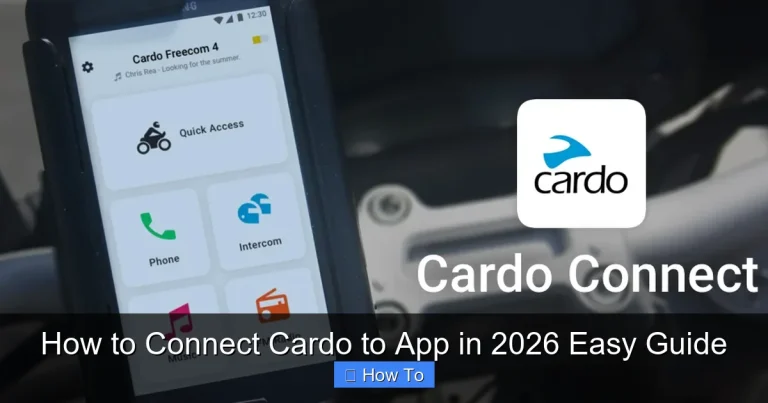
Step 5: Use the Cardo Connect App (Optional but Recommended)
The free Cardo Connect app (available on iOS and Android) makes managing your device easier. Download it and follow these steps:
Pair via the App
- Open the app and tap “Add Device.”
- Select your Cardo model from the list.
- Follow on-screen prompts to complete pairing with your riding partner.
Customize Settings
Once connected, you can:
- Adjust intercom volume and sensitivity
- Enable voice commands (“Hey Cardo, call rider”)
- Update firmware for better performance
- Set up speed dial contacts
Keeping your firmware updated is crucial—especially in 2026, as newer updates improve battery life and mesh network reliability. For riders who also enjoy listening to music while riding, the app lets you balance intercom and audio levels seamlessly. Learn more in our article on how to listen to music while riding a motorcycle.
Step 6: Ride Safely and Stay Connected
Once paired, your Cardo system will automatically reconnect when both riders are within range. However, signal strength depends on terrain. In open highways, you might get the full 1.6 km range. In cities with tall buildings or dense forests, that drops to 300–500 meters.
Tips for Best Performance
- Avoid placing phones or other Bluetooth devices near the headset—they can cause interference.
- If the connection drops, slow down or stop safely to re-pair.
- Use voice commands to minimize distractions: “Hey Cardo, talk to rider.”
For long-distance tours, consider carrying a portable power bank to keep your Cardo charged. And if you’re riding in rainy conditions, ensure your helmet seals properly to protect the electronics. Our guide on how to keep your motorcycle helmet from fogging up includes tips for maintaining clear visibility and device safety in wet weather.
Troubleshooting Common Pairing Issues
Even with the latest tech, things don’t always go smoothly. Here’s how to fix the most common problems:
Devices Won’t Pair
- Make sure both are in pairing mode at the same time.
- Check that neither device is already connected to a phone or another rider.
- Restart both units and try again.
Audio Cuts In and Out
- Move closer together—distance is the #1 cause of dropouts.
- Ensure antennas (if external) are properly positioned.
- Update firmware via the Cardo Connect app.
One Rider Can’t Hear the Other
- Check microphone placement—it should face your mouth, not your chin.
- Clean the mic port gently with a dry brush.
- Adjust noise cancellation settings in the app.
If all else fails, perform a factory reset on both devices and start fresh. Most issues are resolved this way.
Conclusion: Enjoy Seamless Communication on Every Ride
Connecting your Cardo system to another rider in 2026 is simpler than ever—thanks to improved Bluetooth standards, intuitive apps, and smarter mesh networking. By following these steps, you’ll enjoy clear, reliable communication whether you’re cruising down the coast or navigating mountain passes.
Remember: always test your connection before hitting the road, keep your firmware updated, and use the Cardo Connect app to unlock advanced features. With the right setup, your intercom becomes an extension of your riding experience—not a distraction.
Now that you know how to connect Cardo to another rider, you’re ready to ride smarter, safer, and more connected. Share this guide with your riding crew, and never miss a word again.