How to Reset Cardo Packtalk Edge Fast 2026

This guide walks you through the fastest and most reliable way to reset your Cardo Packtalk Edge in 2026. Whether you’re fixing connection issues or preparing for resale, these steps ensure a clean factory reset every time.
How to Reset Cardo Packtalk Edge in 2026 Fast
If your Cardo Packtalk Edge is acting up—dropping connections, freezing, or refusing to pair—it might be time for a reset. In 2026, the Packtalk Edge remains one of the most popular Bluetooth communication systems among riders, thanks to its Dynamic Mesh Communication (DMC) and voice control features. But like any tech device, it occasionally needs a fresh start.
This guide will show you exactly how to reset your Cardo Packtalk Edge quickly and safely, whether you’re troubleshooting an issue or preparing to sell or lend your unit. We’ll cover both soft and hard reset methods, explain what each does, and offer practical tips to avoid common pitfalls. By the end, you’ll know how to restore your device to factory settings in under a minute—no technical skills required.
Why Reset Your Cardo Packtalk Edge?
Before diving into the steps, let’s talk about why you might need a reset. Common reasons include:

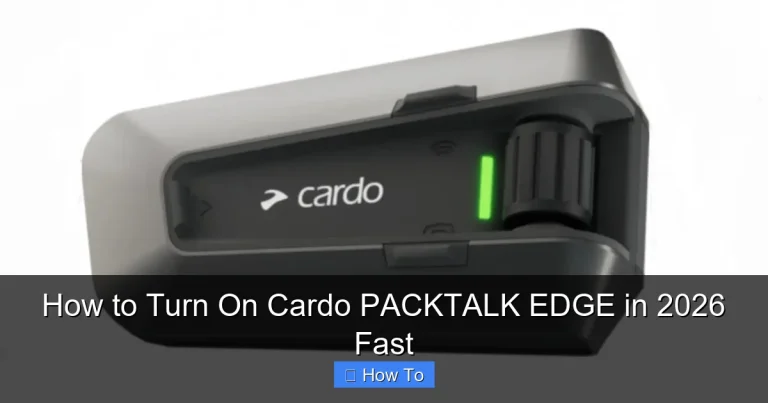
Visual guide about How to Reset Cardo Packtalk Edge in 2026 Fast
Image source: motonz.com
- Bluetooth pairing problems: Your phone or GPS won’t connect, or the connection keeps dropping.
- Firmware glitches: After an update, the system behaves oddly or freezes during use.
- Preparing for resale or transfer: You want to wipe personal data and unpair all devices.
- Voice commands not working: The system ignores “Hey Cardo” or misinterprets commands.
- Intercom issues with other riders: DMC mode fails to connect or drops frequently.
A reset won’t damage your device—it simply clears temporary data and restores default settings. Think of it like restarting your phone when an app crashes. It’s safe, effective, and often the fastest fix.
What You’ll Need Before Resetting
To ensure a smooth reset process in 2026, gather these items:
- A fully charged Cardo Packtalk Edge (at least 50% battery recommended)
- Access to the physical buttons on the unit (usually mounted on your helmet)
- About 30–60 seconds of your time
Pro Tip: Always charge your Packtalk Edge before resetting. A low battery can interrupt the process and leave the device in an unstable state. If you’re near a power source, plug it in for 10 minutes just to be safe.
Method 1: Soft Reset (Quick Reboot)
A soft reset is the simplest way to refresh your Packtalk Edge without erasing settings. It’s ideal if your device is frozen or unresponsive but still has power.
Step-by-Step Soft Reset
- Locate the main button: This is the large, circular button on the side of the Packtalk Edge unit.
- Press and hold the main button for 10 seconds: Keep holding until you hear a voice prompt saying “Power off.”
- Release the button: The unit will shut down completely.
- Wait 5 seconds, then press the main button once to turn it back on: You’ll hear the startup sound and voice prompts.
This method reboots the system without affecting your paired devices or settings. It’s perfect for minor glitches like audio lag or temporary freezes.
Method 2: Factory Reset (Full Wipe)
If a soft reset doesn’t solve the problem, or you’re preparing to sell your unit, a factory reset is the way to go. This erases all paired devices, custom settings, and returns the Packtalk Edge to its original state.
Step-by-Step Factory Reset
- Ensure the unit is powered on: If it’s off, press the main button once to turn it on.
- Press and hold both the Volume Up (+) and Volume Down (–) buttons simultaneously: These are the two smaller buttons next to the main button.
- Hold them for 8–10 seconds: You’ll hear a series of beeps followed by a voice prompt saying “Factory reset.”
- Release the buttons: The device will automatically restart.
- Wait for the startup sequence: You’ll hear the welcome message and default language prompt (usually English).
Once complete, your Packtalk Edge will behave like it’s fresh out of the box. All previous Bluetooth pairings, DMC groups, and custom voice settings will be erased.
What Happens After a Factory Reset?
After resetting, you’ll need to reconfigure your device:
- Re-pair your smartphone: Go to your phone’s Bluetooth settings and search for “Cardo Packtalk Edge.”
- Reconnect your GPS or music player: Repeat the pairing process for any other devices.
- Set your preferred language and voice prompts: Use the voice command “Language” followed by your choice (e.g., “English,” “Spanish”).
- Update firmware via Cardo Connect app: Download the app from the App Store or Google Play, then check for updates. In 2026, Cardo regularly releases firmware improvements for noise cancellation and battery life.
Note: The factory reset does not delete pre-installed voice prompts or languages. Only user data and pairings are removed.
Troubleshooting Common Reset Issues
Even with clear instructions, things can go wrong. Here’s how to handle the most common problems:
The Unit Won’t Respond to Button Presses
If your Packtalk Edge is completely frozen, try a hard power cycle:
- Remove the unit from your helmet.
- Locate the small reset pinhole on the back (near the charging port).
- Use a paperclip or SIM tool to gently press the internal button for 5 seconds.
- Reattach and power on normally.
Reset Doesn’t Clear Pairings
Sometimes, old devices remain in memory. After a factory reset:
- Go to your phone’s Bluetooth settings and “Forget” the Packtalk Edge.
- Restart both devices.
- Re-pair from scratch.
Voice Prompts Still in Wrong Language
If the language didn’t reset, manually change it:
- Say “Language” clearly.
- Wait for the list, then say your preferred language.
- Confirm with “Yes” when prompted.
Pro Tips for a Smooth Reset Experience
- Do the reset in a quiet environment: Background noise can interfere with voice confirmation prompts.
- Wear your helmet during the process: This ensures the microphone picks up your voice clearly if needed.
- Keep the Cardo Connect app updated: It often includes reset guidance and diagnostic tools.
- Reset before long rides: If you’re heading out on a group trip, reset beforehand to avoid mid-ride issues.
For riders who frequently switch between helmets or share units with friends, keeping a reset cheat sheet in your gear bag can save time. And if you’re using your Packtalk Edge with a GPS tracker for added security, make sure to re-sync your tracking system after resetting to maintain full protection.
When to Contact Cardo Support
If your Packtalk Edge still won’t reset after multiple attempts, or if it powers on but shows error tones, it may have a hardware issue. In 2026, Cardo offers excellent customer support via live chat and email. Visit their official website and have your serial number ready (found under the battery cover).
Also, if you’re experiencing persistent audio issues—like wind noise overpowering your mic—check out our guide on how to reduce wind noise in your helmet. Sometimes the problem isn’t the device, but the helmet fit or microphone placement.
Conclusion
Resetting your Cardo Packtalk Edge in 2026 is fast, simple, and often the quickest fix for connectivity or performance issues. Whether you use the soft reboot for minor glitches or the full factory reset for a clean slate, these steps will get you back on the road with clear communication in under a minute.
Remember: always charge first, follow the button sequence carefully, and re-pair your devices afterward. And if you’re prepping your bike for sale or maintenance, don’t forget to check our guide on buying used motorcycles to ensure everything—including your comms system—is in top shape.
With this guide, you’re ready to handle any reset scenario with confidence. Ride safe, stay connected, and enjoy the open road!