How to Connect Sena to Cardo Easy Guide 2026

Connecting a Sena headset to a Cardo system in 2026 is simpler than ever, thanks to improved Bluetooth compatibility and updated firmware. This guide walks you through the full pairing process, troubleshooting tips, and best practices for crystal-clear communication between riders.
Why Connect Sena to Cardo?
If you’re riding with a friend who uses a different brand of Bluetooth headset—say, you have a Sena and they use Cardo—you might think you’re stuck with silent miles. But in 2026, that’s no longer the case. Thanks to advancements in Universal Intercom technology, connecting Sena to Cardo headsets is not only possible but surprisingly straightforward.
This guide will show you exactly how to pair your Sena device with a Cardo system, whether you’re planning a weekend tour or just commuting with your riding buddy. You’ll learn the correct steps, avoid common pitfalls, and enjoy seamless, hands-free communication—no matter which brand you prefer. Plus, we’ll include tips to keep your connection stable and your conversations clear, even at highway speeds.
Also see: Cardo vs Sena:Which Motorcycle Comms Work Best in 2026?
What You’ll Need
Before you begin, make sure you have the following:

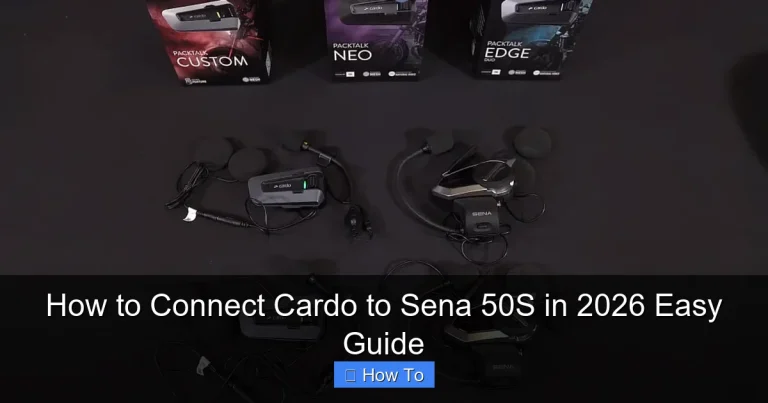
Visual guide about How to Connect Sena to Cardo in 2026 Easy Guide
Image source: motonz.com
- A Sena Bluetooth headset (models like SMH10, 10U, 20S, 50 series, or newer)
- A Cardo Bluetooth headset (such as Packtalk, Freecom, or Smarttalk models)
- Both devices charged to at least 50%
- Access to the user manuals (or our quick-reference steps below)
- A quiet environment for initial setup (optional but recommended)
Having the right gear ready will save time and frustration. Also, if you’re new to motorcycle headsets, check out our guide on how to listen to music while riding a motorcycle to get the most out of your audio system.
Step 1: Update Firmware on Both Devices
Firmware updates are critical in 2026. Both Sena and Cardo regularly release updates that improve compatibility, fix bugs, and enhance intercom performance. Skipping this step is one of the most common reasons pairing fails.
How to Update Sena Firmware
- Download the Sena Device Manager app on your computer (Windows or Mac).
- Connect your Sena headset via USB cable.
- Open the app and follow the prompts to check for updates.
- If an update is available, install it and wait for the process to complete.
How to Update Cardo Firmware
- Install the Cardo Connect app on your smartphone (iOS or Android).
- Pair your Cardo headset to your phone via Bluetooth.
- Open the app and go to “My Devices.”
- Tap “Check for Updates” and install any available firmware.
Pro tip: Always restart both headsets after updating. This ensures the new firmware loads properly and resets any lingering connection issues.
Step 2: Enable Universal Intercom Mode
Universal Intercom is the magic feature that lets different brands talk to each other. Both Sena and Cardo support this in 2026, but it must be activated correctly.
On Your Sena Headset
- Turn on the Sena device.
- Press and hold the Phone Button for 8–10 seconds until you hear “Universal Intercom pairing.”
- The LED will flash red and blue, indicating it’s in pairing mode.
On Your Cardo Headset
- Power on the Cardo unit.
- Press and hold the Intercom Button for 5–7 seconds until you hear “Universal Intercom pairing.”
- The LED will blink green and red.
Note: Some newer Cardo models (like the Packtalk Bold) may require you to enable Universal Intercom in the app first. Check your settings under “Intercom Mode.”
Step 3: Pair the Devices
Now that both headsets are in pairing mode, it’s time to connect them.
Pairing Process
- Stay within 3 feet of each other—Bluetooth range is limited during setup.
- On the Sena device, press the Phone Button once to search for nearby devices.
- On the Cardo device, press the Intercom Button once to accept the connection.
- Wait for both headsets to confirm pairing—usually with a voice prompt like “Intercom connected” or a series of beeps.
If successful, the LEDs on both devices will switch to a solid color (often blue or green). You should now be able to talk to each other using the intercom.
Having trouble? Try reversing the order: turn on Cardo first, then initiate pairing from Sena. This often resolves connection hiccups.
Step 4: Test the Connection
Don’t hit the road until you’ve tested your setup. Here’s how:
Basic Audio Test
- Press the intercom button on either headset to start a call.
- Speak clearly and listen for audio on the other end.
- Check volume levels—adjust using the +/- buttons on each device.
Advanced Test (Optional)
- Play music from one device and stream it to the other via Bluetooth audio sharing.
- Test GPS voice navigation to ensure directions come through clearly.
- Try a group call if you have more than two riders (some models support up to 15-way intercom).
For a smoother ride, consider pairing your headset with a GPS tracker. Learn more in our article on how to track your stolen motorcycle using GPS tracker—it’s a smart safety combo.
Troubleshooting Common Issues
Even with perfect steps, things can go wrong. Here’s how to fix the most common problems in 2026.
Pairing Fails or Drops Frequently
- Solution: Reset both headsets to factory settings. On Sena, hold the Phone Button for 12 seconds. On Cardo, hold the Power and Volume Down buttons for 10 seconds. Then retry pairing.
One-Way Audio (You Hear Them, But They Can’t Hear You)
- Solution: Check mic placement. Make sure the boom mic is close to your mouth (within 1 cm) and not blocked by helmet padding. Also, clean the mic port—dust and moisture can muffle sound.
Weak or Crackling Sound
- Solution: Reduce wind noise by adjusting your helmet fit or using a windscreen over the mic. Also, ensure both headsets are fully charged—low power can degrade audio quality.
For extra help reducing wind noise, read our guide on how to reduce wind noise in your helmet. It includes DIY fixes and product recommendations.
Devices Won’t Enter Pairing Mode
- Solution: Confirm you’re using the correct button sequence. Some older Sena models require a different combo. Refer to your manual or visit the manufacturer’s support page.
Best Practices for Long-Ride Communication
Once connected, keep your intercom running smoothly with these tips:
- Charge before long trips: Use a USB-C cable or wireless charging pad (on supported models) to top up during fuel stops.
- Use voice commands: Most 2026 Sena and Cardo models support “Hey Sena” or “Hey Cardo” for hands-free control.
- Limit background apps: Close unused apps on your phone to prevent Bluetooth interference.
- Carry a backup power bank: A small 10,000mAh battery can recharge your headset mid-ride.
And if you’re riding with multiple passengers, consider organizing your gear efficiently. Check out how to carry an extra helmet on a motorcycle for smart storage ideas.
Conclusion
Connecting Sena to Cardo in 2026 is easier than ever, thanks to Universal Intercom and better firmware support. By following this guide—updating your devices, enabling the right modes, and testing thoroughly—you’ll enjoy clear, reliable communication on every ride.
Whether you’re touring across states or just cruising around town, staying connected enhances safety and fun. So grab your helmets, pair your headsets, and hit the open road with confidence. And remember: a well-maintained setup starts with good habits—like keeping your gear clean and charged.