How to Use Cardo Packtalk Edge in 2026

This guide walks you through setting up and using your Cardo Packtalk Edge in 2026. You’ll master pairing, intercom, music, GPS, and voice control for a safer, more connected ride.
How to Use Cardo Packtalk Edge in 2026: A Complete Guide
If you’re a rider in 2026, you know that staying connected while on the road isn’t just convenient—it’s essential. The Cardo Packtalk Edge is one of the most advanced motorcycle communication systems available, offering crystal-clear audio, long-range intercom, and smart features powered by AI and voice control. Whether you’re commuting daily or planning a cross-country tour, this guide will show you exactly how to use your Packtalk Edge like a pro.
In this step-by-step guide, you’ll learn how to set up your device, pair it with your smartphone and helmet, use group intercom, stream music, receive GPS navigation, and troubleshoot common issues. By the end, you’ll be riding with confidence, knowing your Packtalk Edge is working perfectly.
Step 1: Unboxing and Initial Setup
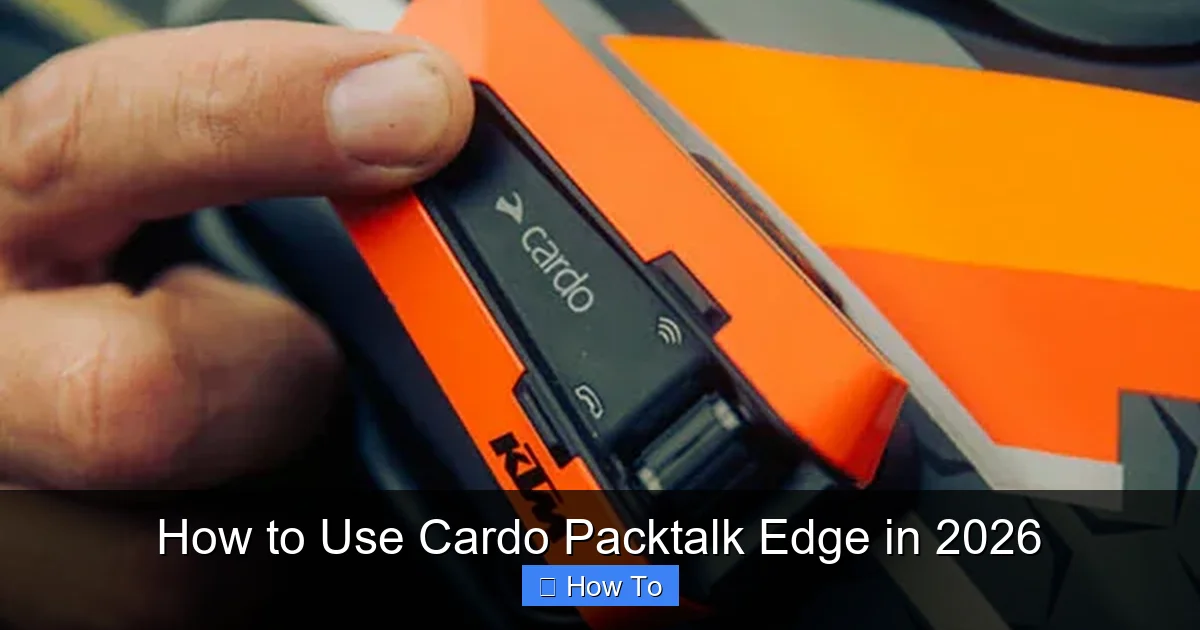
Visual guide about How to Use Cardo Packtalk Edge in 2026
Image source: cdn.shopify.com
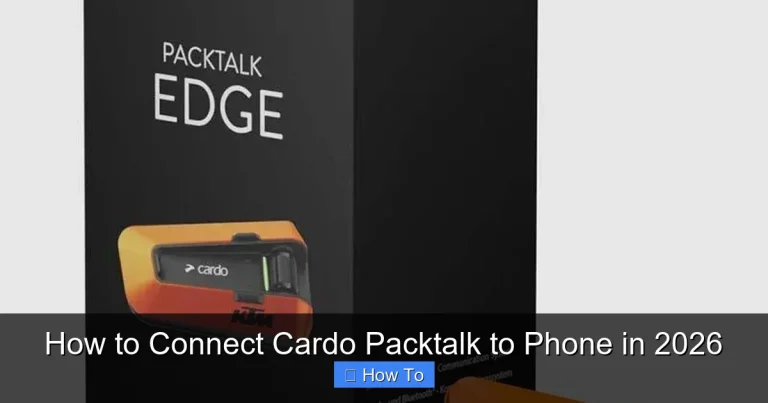
When you first open your Cardo Packtalk Edge box, you’ll find the main unit, two 40mm JBL speakers, a boom microphone, adhesive and clamp mounts, a USB-C charging cable, and a quick-start guide. The device itself is compact, lightweight, and built to fit most helmets.
Mount the Device on Your Helmet
Choose the mounting method that works best for your helmet. The adhesive mount is great for full-face helmets with smooth surfaces, while the clamp mount fits securely on modular or open-face designs. Clean the area with alcohol wipes before applying the mount to ensure strong adhesion.
Install the Speakers and Microphone
Place the speakers inside the helmet’s ear pockets, securing them with the included Velcro pads. Position the boom microphone near your mouth—about 1–2 cm away—so it picks up your voice clearly without touching your lips. For optimal sound, make sure the microphone is aligned with your mouth and not blocked by padding.
Power On and Charge
Press and hold the main button for 3 seconds to turn on the device. The LED will flash blue and red during startup. Charge the unit fully before first use—this takes about 2 hours via USB-C. A quick 20-minute charge gives you 2 hours of talk time, perfect for short rides.
Step 2: Pairing with Your Smartphone
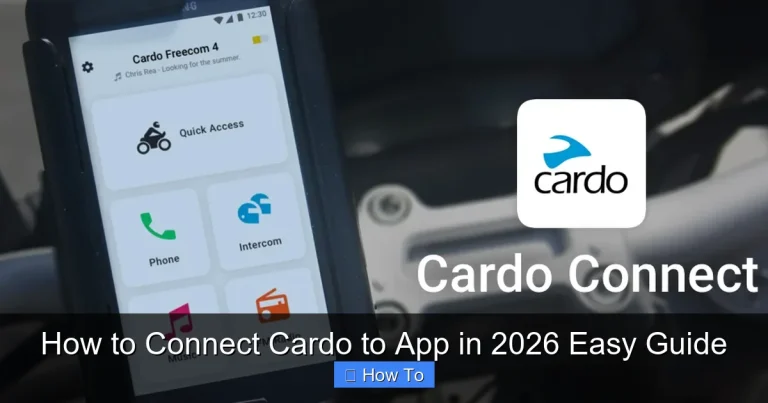
The Packtalk Edge uses Bluetooth 5.2 for fast, stable connections. Pairing is simple with the Cardo Connect app, available for iOS and Android.
Download the Cardo Connect App
Search for “Cardo Connect” in your app store and install it. The app is your control center for settings, firmware updates, and customizing audio profiles.
Enable Bluetooth and Pair
Turn on Bluetooth on your phone, then open the app. Tap “Add Device” and follow the prompts. The Packtalk Edge will appear in the list—select it to pair. You’ll hear a voice confirmation: “Phone connected.”
Set Up Voice Assistants
Once paired, go to the app’s “Voice Assistant” section. Choose between Siri, Google Assistant, or Alexa. Say “Hey Google” or “Hey Siri” to test activation. This lets you make calls, send texts, or get directions without touching your phone.
Step 3: Connecting with Other Riders
One of the standout features of the Packtalk Edge is Dynamic Mesh Communication (DMC), which creates a self-healing network for group rides.
Pair with Another Packtalk Edge
Turn on both devices and press the intercom button on each for 5 seconds until the LED flashes green. They’ll automatically connect. You can add up to 15 riders in DMC mode, with a range of up to 1.6 km (1 mile) in open terrain.
Switch Between Intercom Modes
Use the Cardo Connect app to toggle between DMC and Bluetooth intercom. DMC is ideal for large groups, while Bluetooth mode works best for one-on-one chats. You can also prioritize certain riders or mute others during long rides.
Start a Group Conversation
Press the intercom button once to talk. The system uses full-duplex technology, so everyone can speak and listen at the same time—no need to press to talk. Voice prompts will announce when someone joins or leaves the group.
Step 4: Streaming Music and GPS
The Packtalk Edge delivers rich, immersive sound through its JBL speakers. Here’s how to enjoy music and navigation safely.
Stream Music from Your Phone
Once your phone is paired, open your favorite music app (Spotify, Apple Music, etc.) and start playing. Audio will stream directly to your helmet. Use the volume buttons on the unit to adjust levels. For better sound quality, go to the app and customize the EQ settings—boost bass for rock or enhance vocals for podcasts.
Get Turn-by-Turn GPS Directions
Pair your phone’s GPS app (Google Maps, Waze, or Apple Maps) with the Packtalk Edge. When you start navigation, voice prompts will guide you through your route. The system automatically lowers music volume when directions play, so you never miss a turn.
Use Natural Voice Commands
Say “Hey Cardo, play my riding playlist” or “Hey Cardo, navigate to nearest gas station” to control audio and navigation hands-free. This keeps your focus on the road and improves safety.
Step 5: Customizing Settings via the App
The Cardo Connect app unlocks advanced features and personalization options.
Update Firmware
Check for updates regularly in the app. New firmware improves performance, adds features, and fixes bugs. Updates are quick and automatic over Wi-Fi.
Adjust Audio and Microphone Settings
Fine-tune microphone sensitivity to reduce wind noise. Enable “Echo Cancellation” and “Wind Noise Reduction” for clearer calls. You can also set different audio profiles for music, calls, and intercom.
Create Rider Profiles
Save settings for different helmets or riders. If you share your Packtalk Edge with a friend, switch profiles in seconds without re-pairing devices.
Troubleshooting Common Issues
Even the best tech can have hiccups. Here’s how to fix the most common problems.
Device Won’t Pair
Make sure Bluetooth is on and the device is in pairing mode (LED flashing blue and red). Reset the Packtalk Edge by holding the power button for 10 seconds. Re-pair through the app.
Poor Audio Quality
Check speaker placement—ensure they’re snug in the ear pockets. Clean the microphone with a dry cloth. If wind noise is an issue, enable noise reduction in the app or consider a wind noise reduction foam cover.
Intercom Drops Out
This can happen in tunnels or urban areas with signal interference. Switch to Bluetooth intercom for short-range chats. For long rides, plan routes with clear line-of-sight between riders.
Battery Drains Fast
Turn off unused features like music streaming when not needed. Use the quick-charge feature before long trips. If the battery still drains quickly, check for firmware updates or contact Cardo support.
Tips for the Best Riding Experience
To get the most out of your Packtalk Edge in 2026, follow these practical tips:
- Keep it charged: Use a portable power bank on multi-day trips. The USB-C port supports fast charging.
- Clean regularly: Wipe the unit and speakers with a damp cloth. Avoid harsh chemicals that can damage the IP67 seal.
- Use a helmet liner: A moisture-wicking liner can help reduce sweat buildup and improve comfort. Learn how to clean helmet pads to maintain hygiene.
- Test before you ride: Do a quick audio check with a friend before heading out.
- Stay updated: Bookmark the Cardo support page for the latest tips and firmware.
Conclusion
The Cardo Packtalk Edge is more than just a Bluetooth headset—it’s a smart riding companion that keeps you connected, informed, and entertained. By following this guide, you’ve learned how to set up, pair, and customize your device for the best possible experience in 2026. Whether you’re riding solo or with a group, the Packtalk Edge enhances safety and enjoyment on every mile.
Remember to keep your firmware updated, maintain your device, and use voice commands to stay hands-free. With the right setup, your Packtalk Edge will deliver years of reliable performance. Now, hit the road with confidence—your next adventure awaits.